Moving from WordPress to Ghost is very doable, and the content transfer is the easy part. The risk is search traffic: change your URLs carelessly and rankings you spent years earning can disappear for months. This guide shows how to migrate and protect your traffic.
Moving between Ghost hosts instead? See how to move a Ghost blog without downtime.
Before you start
Set aside an afternoon for a small site, longer for a large one. Do not touch your live WordPress site until the Ghost version is ready and tested.
Step 1: Record what you have
You will need this list to check the migration later.
- Your number of posts and pages
- Your top pages by traffic, from Search Console or analytics
- Your URL structure. Open a few posts. Do they look like
/2024/05/post-name/or/post-name/? - Plugins you rely on, such as forms, SEO plugins and shortcodes
Save a spreadsheet of your most important URLs. It is your test plan.
Step 2: Export from WordPress
In WordPress go to Tools, then Export, choose All content and download the file. It is an XML file containing your posts, pages, categories, tags, comments and author details. It does not contain the image files themselves, which stay on your old site.
Step 3: Import into Ghost
In your Ghost admin click Settings, scroll to the Advanced section and open Import/Export. Ghost shows a Migration tools card with an Import tab and an Export tab.
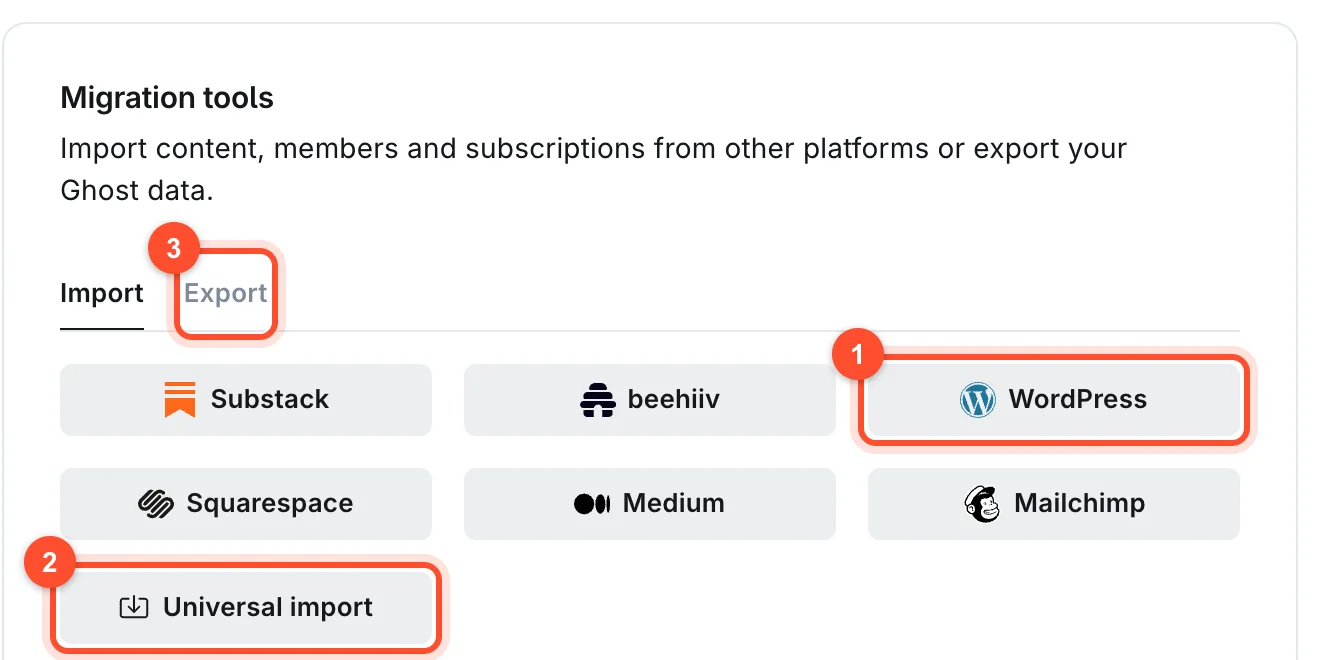
The Import tab has buttons for Substack, beehiiv, WordPress, Squarespace, Medium and Mailchimp, plus Universal import. Choose WordPress and follow its steps. In outline:
- Upload the export file.
- The tool converts your content into a format Ghost understands and prepares it for import.
- Import the result using Universal import.
Do this on your new, empty Ghost site. After it finishes, open the Posts and Pages lists and compare the counts against your spreadsheet.
Check what did not come across
- Images. Confirm they display, and that they are hosted on your Ghost site rather than still linking to the old one. If they still point at the old domain, they will vanish when you switch.
- Formatting. Open several long posts. Shortcodes and page-builder layouts rarely convert perfectly.
- Categories. WordPress categories become Ghost tags.
- Comments. Ghost has its own members comments feature, and old comments are not always carried across.
- Plugin features. Contact forms, sliders and similar features must be replaced. See pages and navigation for contact options.
Step 4: Keep your URLs the same where you can
The safest migration keeps every address identical. If your WordPress posts lived at
/2024/05/post-name/, tell Ghost to use the same structure. Ghost does this with a routes file.
Open Settings, scroll to Advanced, open Labs and click Open. Under the beta features you will find Routes, with buttons to Upload routes file, Edit, and Download current routes. Download the current file first so you can restore it. Then edit it so your collection uses your old pattern:
routes:

collections:
  /:
    permalink: /{year}/{month}/{slug}/
    template: index

taxonomies:
  tag: /tag/{slug}/
  author: /author/{slug}/
Upload it and open several posts to confirm they load at the old addresses. If your WordPress posts used just the slug, you can leave Ghost's default in place.
Step 5: Redirect everything that changes
Some addresses will differ regardless. Common ones:
| WordPress | Ghost | Action |
|---|---|---|
/category/tutorials/ |
/tag/tutorials/ |
Redirect |
/feed/ |
/rss/ |
Redirect |
/author/name/ |
/author/name/ |
Usually the same |
| Pages | /page-name/ |
Usually the same |
Add redirects in the same Labs area. The syntax and testing method are in how to set up redirects in Ghost.
Step 6: Recreate your SEO settings
Ghost handles the basics without a plugin, including a sitemap, canonical tags and social cards. Then:
- Check that the meta titles and descriptions imported. Rewrite the ones for your most important posts.
- Set your site title and description.
- Confirm your logo and icon.
The full list is in the Ghost SEO settings guide.
Step 7: Test before you switch
Walk through your spreadsheet of important URLs. For each one, check that it loads, looks right, and has working images and links. Test on a phone. Read a few posts from start to finish.
Step 8: Go live
- Lower your DNS TTL a day before, to about 300 seconds.
- Point your domain at Ghost. On our platform you add the domain in the panel and create one A record. The site is live with HTTPS in about a minute once DNS resolves. See how it works.
- Check the live site straight away against your URL list.
- Submit your new sitemap at
yourdomain.com/sitemap.xmlin Google Search Console.
Keep a full backup of your old WordPress site and database for a few months in case you need something back.
Step 9: Watch Search Console for two weeks
Open the Pages report and look for new Not found (404) entries. Each one is an old address you did not redirect. Add a redirect for it. Expect some ranking movement for a few weeks. That is normal. A large, lasting drop means URLs are missing, so go back to your list.
Should you migrate at all?
Ghost is faster and simpler to maintain, and it gives you memberships and newsletters built in. If your WordPress site depends on a plugin ecosystem, an online shop or heavy custom layouts, weigh that carefully. Our Ghost vs WordPress comparison lays out the trade-offs.
FAQ
Will I lose my Google rankings if I move to Ghost?
Not if you keep your URLs the same or redirect every changed one, and submit your sitemap. Expect small fluctuations for a few weeks.
Do my WordPress images move to Ghost?
The WordPress export does not include the image files, so check after importing that they are hosted on your Ghost site and not still loading from the old one. Do not turn off the old site until you have confirmed this.
Can I keep my WordPress permalink structure in Ghost?
Yes. Use a routes file with a permalink pattern such as /{year}/{month}/{slug}/ so posts keep
their old addresses.
What happens to WordPress plugins?
Ghost has no plugins. Common needs, such as SEO, sitemaps and newsletters, are built in. Forms, sliders and similar features need alternatives.
How long does a migration take?
A small blog can move in an afternoon. A large site with thousands of posts and custom URLs needs a few days of checking, mostly for redirects and images.
Ready to move? Create your Ghost blog and import your content there. Plans start at $5/month, and you can test everything before pointing your domain across.