A redirect sends visitors and search engines from an old address to a new one. Without it, changing a URL, deleting a post or moving from another platform leaves dead links, lost rankings and frustrated readers. Ghost supports redirects through a small file you edit or upload in the admin. This guide shows the syntax, the common patterns and how to test.
When you need a redirect
- You changed a post's URL
- You renamed or removed a tag
- You deleted a post that has links pointing at it
- You migrated from another platform and your addresses differ
- You want a short, memorable link such as
/subscribe/
301 or 302
| Code | Meaning | Use when |
|---|---|---|
| 301 | Moved permanently | The old address is gone for good. Search engines transfer ranking to the new one. |
| 302 | Moved temporarily | The change is short-lived, such as during a campaign. |
Most of the time you want 301.
Step 1: Open the redirects setting
Click Settings at the bottom of the left sidebar, scroll to the Advanced section and find Labs. Click Open, then scroll down through the beta features until you reach Redirects. It says "Configure redirects for old or moved content" and has three controls:
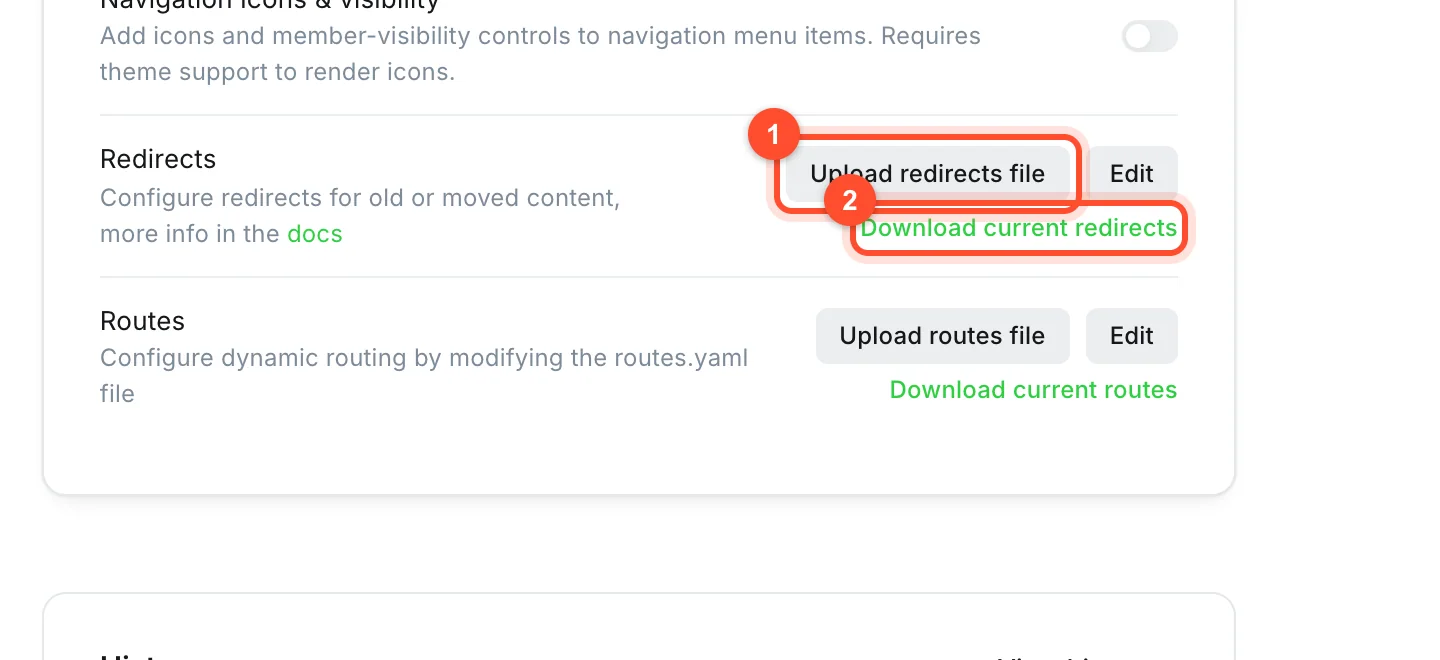
- Upload redirects file replaces the whole file with one from your computer.
- Edit opens the current redirects in a built-in editor, which is the easiest way to add to an existing list.
- Download current redirects saves a copy of what you have now.
Before changing anything, click Download current redirects and keep the copy. An upload replaces the whole file, so you would lose entries you did not include.
Step 2: Write your redirects in YAML
Ghost reads a file called redirects.yaml. Click Edit and you will see it in an editor:
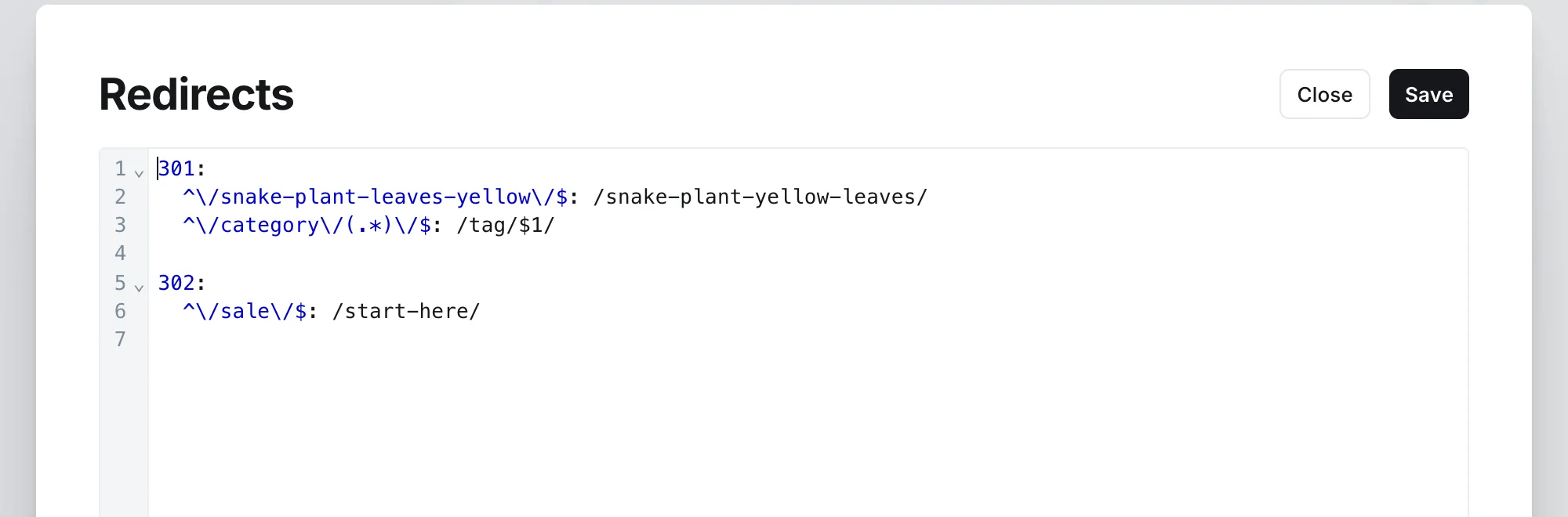
This is the format:
301:
  ^\/old-post\/$: /new-post/
  ^\/2023\/05\/my-article\/$: /my-article/

302:
  ^\/sale\/$: /pricing/
The section number is the redirect type. Each line beneath it has a pattern on the left, then a colon and a space, then the destination.
The left side is a regular expression matched against the path:
^means the start of the address$means the end\/is a literal slash, escaped
For a plain one-to-one redirect, copy the old path, escape the slashes with a backslash, and wrap
it in ^ and $.
Step 3: Redirect a whole group with a pattern
Regular expressions let one line cover many addresses. Parentheses capture part of the path, and
$1 puts it in the destination.
301:
  ^\/category\/(.*)\/$: /tag/$1/
  ^\/blog\/(.*)\/$: /$1/
The first sends /category/tutorials/ to /tag/tutorials/. The second removes a /blog/ prefix
from every address.
Use these carefully. A pattern that is too broad can catch pages you did not mean to redirect.
Step 4: Use JSON if you prefer
Ghost also accepts a JSON redirects file:
[
  {
    "from": "^\\/old-post\\/$",
    "to": "/new-post/",
    "permanent": true
  }
]
Set permanent to true for a 301 and false for a 302. Backslashes are doubled in JSON. YAML is
easier to read, so we use it here.
Step 5: Save or upload, then test
If you used the editor, click Save. If you edited a file, use Upload redirects file. Ghost confirms that the redirects updated.
Test straight away. In a terminal:
curl -I https://yourdomain.com/old-post/
Look for 301 on the first line and a location: header showing the new address. You can also just
open the old URL in a private window and check you land on the right page.
Then request the new URL in Search Console to prompt a re-crawl.
Common mistakes
| Mistake | Result | Fix |
|---|---|---|
| Not escaping slashes in the pattern | Redirect never matches | Use \/ |
Forgetting ^ and $ |
Matches too much | Anchor both ends |
| Redirect chains (A to B to C) | Slower, weaker | Point the old address straight at the final one |
| Redirect loops (A to B to A) | Browser error | Check the destination is not redirected back |
| Uploading a file that replaces your existing one | Lost redirects | Download the current file and copy its entries in first |
| Redirecting everything to the homepage | Treated as soft 404 | Redirect to the closest matching page |
A checklist for a URL change
- Change the URL, and note the old one.
- Add the redirect, old to new.
- Test the old address.
- Update internal links to point at the new address directly, rather than relying on the redirect.
- Resubmit your sitemap or request indexing for the new URL.
- Watch Search Console for 404 errors over the next weeks.
When not to redirect
If a page is gone and there is no equivalent, leave it as a normal not-found page rather than sending people somewhere unrelated. A helpful 404 with a link to your best content is better than a misleading redirect.
Redirects in a migration
Redirects are the heart of a safe migration. If you are moving from another platform, see how to migrate WordPress to Ghost. For URL changes to a live post, see how to edit a published post.
FAQ
Where do I add redirects in Ghost?
In the admin, open Settings, then Advanced, then Labs, and use the Redirects section. Upload a redirects file or open the editor to change it.
Does Ghost redirect automatically when I change a post's URL?
Do not count on it. After changing a live URL, open the old address in a private window. If it does not land on the new post, add a redirect yourself.
Do redirects hurt SEO?
A single 301 passes ranking to the new address with little loss. Long chains and loops cause problems, so keep them to one hop.
How many redirects can I have?
Ghost does not publish a strict limit, but a file with thousands of complex patterns can slow things. Prefer a few pattern-based rules over thousands of individual lines.
Can I redirect to another website?
Yes. Use the full address as the destination, for example https://example.com/page/.
A reliable host makes redirects, sitemaps and everything else easier to trust. See our plans or start a blog.