Editing a post that is already live makes people nervous, and a little care is justified. Most edits are harmless. A few, especially changing the URL, can quietly cost you traffic. This guide shows how editing works in Ghost and which changes to treat carefully.
Step 1: Find the post and open it
In the admin, click Posts. The list shows every post with a status under its title: Draft, Scheduled or Published. Use the filters along the top to narrow it down, or the Drafts, Scheduled and Published links under Posts in the sidebar.
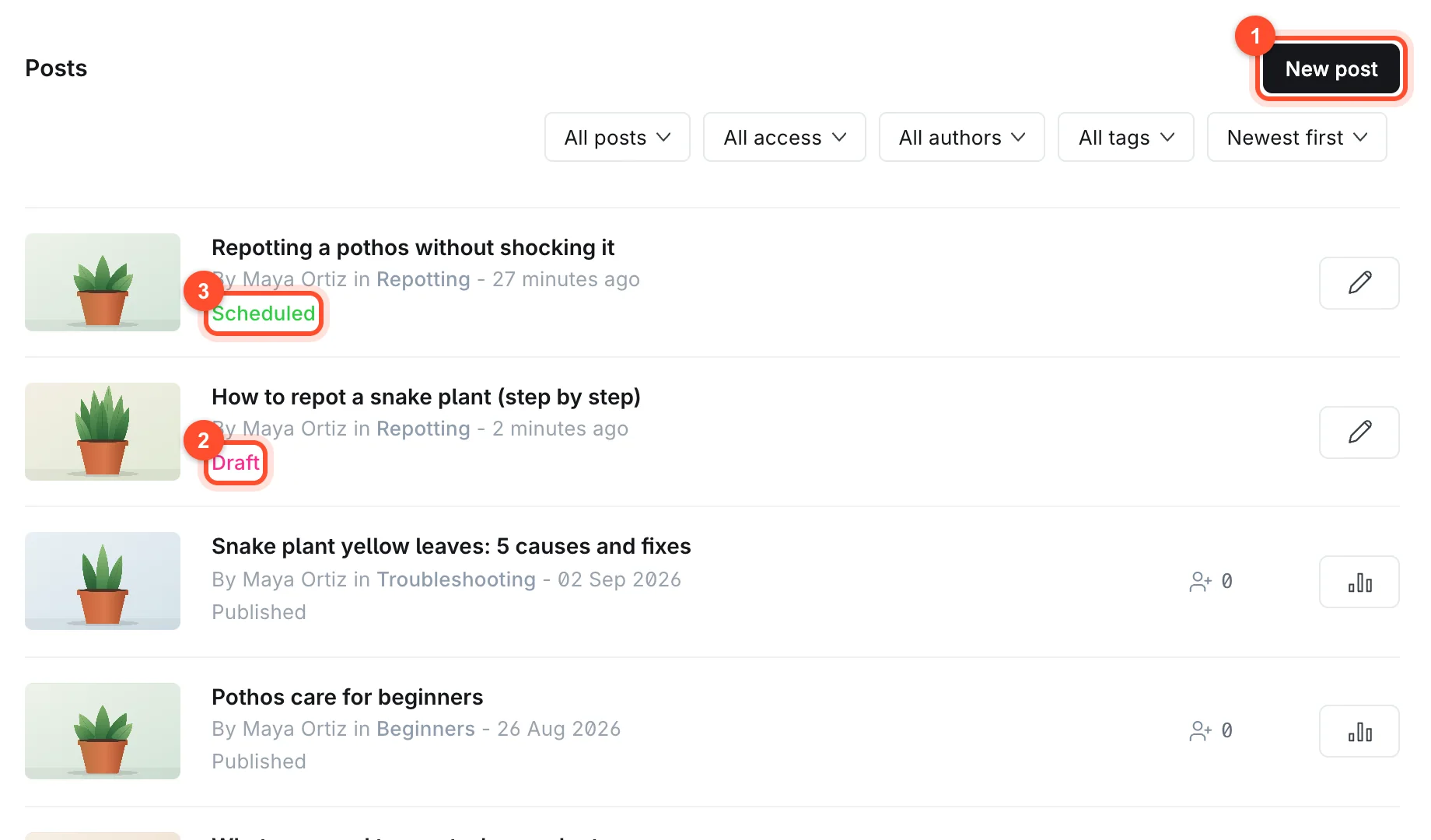
Click the title of the post you want to change to open it in the editor.
Step 2: Make your changes, then click Update
Edit the text, images or settings just as you did when writing it. Your changes do not appear on the public page yet. The live post stays exactly as it was until you click Update in the top right corner.

That gives you a safe way to work. You can make a long series of edits, preview them, and release them all at once.
Step 3: Preview before you update
Click Preview to see the edited version on your site's real design. Check the mobile view, then click Update. If you have made a mistake, edit again and click Update once more. The change is immediate.
The one change to be careful with: the URL
Open Post settings and look at Post URL. If a post is live and other sites, search engines or readers already link to that address, changing the slug makes the old address stop working.
Do not rely on Ghost to sort this out for you. If you must change a URL:
- Change the slug and click Update.
- Open the old address in a private window.
- If it does not land on the new post, add a redirect. See how to set up redirects in Ghost.
The safest rule is to decide the URL before publishing and leave it alone. The wording of the title can change freely without touching the slug.
Changing the title and meta data
You can change a post's title at any time without affecting the address. It is also a good way to improve clicks. If a post ranks but few people click, rewrite the title to be clearer, and adjust the Meta title and Meta description in the Meta data section of Post settings to match. The SEO settings guide covers what makes a good one.
How to unpublish a post
Sometimes you need a post out of public view without deleting it. Open the post and click Unpublish in the top bar.
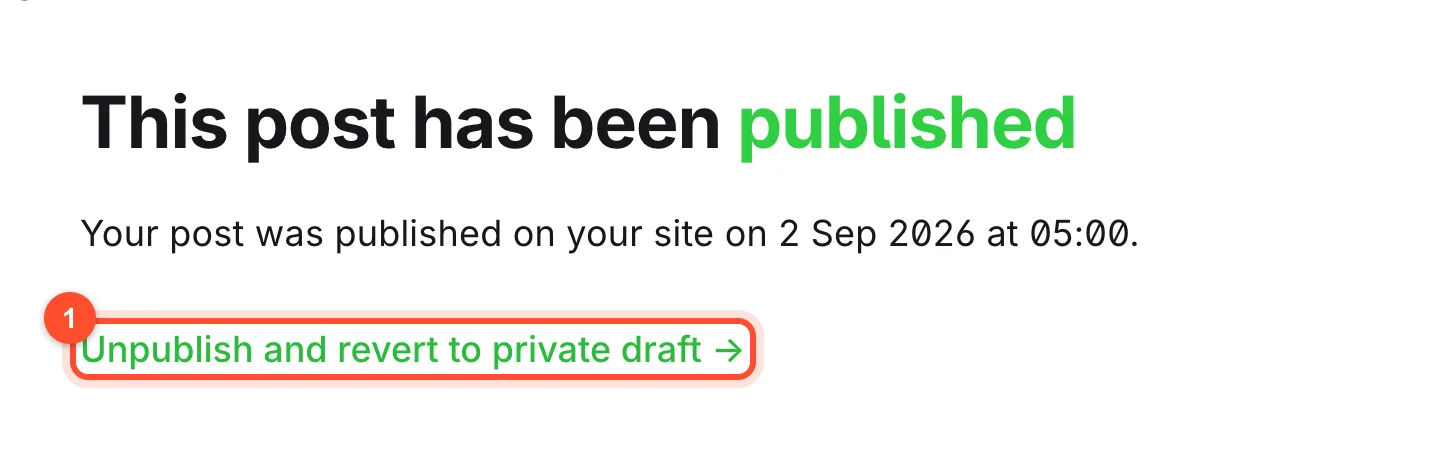
Ghost tells you when the post was published and offers Unpublish and revert to private draft. The post goes back to a private draft, its page stops loading, and you can republish it later.
If a post was scheduled rather than published, the same button reads Unschedule instead.
If you unpublish a post that has traffic and backlinks, visitors get a not-found page. For content that is permanently gone, redirect the old address to the closest related post instead.
Refreshing an old post
Updating old posts is one of the cheapest ways to grow traffic, because the page already has history behind it. A sensible routine:
- Find posts that get impressions in Search Console but sit on page two or three of results.
- Re-read them and correct anything out of date: prices, screenshots, version numbers, broken links.
- Add the sections a searcher would expect that you skipped. Look at what the pages ranking above you cover.
- Improve the title and the first paragraph.
- Update the post and, if you like, adjust the publish date in Post settings only when the post has genuinely changed a lot.
- Request indexing in Search Console for the URL.
Do not change the date of a post just to look fresh. Readers notice, and it is easy to get wrong.
Fixing mistakes fast
| Problem | What to do |
|---|---|
| Typo on a live post | Fix it, click Update |
| Wrong image | Click the image, replace it, Update |
| Half-finished edit you want to abandon | Reload without updating, the live version is unchanged |
| Post published by accident | Unpublish, fix, republish |
| Broken link | Edit the link with Cmd+K, Update |
| Want to see an earlier version | Open Post settings and choose Post history |
FAQ
Does editing a published Ghost post change its publish date?
No. The publish date stays the same unless you edit it yourself in Post settings.
Will readers see my changes right away?
Yes, once you click Update. If you run a CDN or caching layer, allow a few minutes for it to refresh.
Can I edit a post without notifying subscribers?
Yes. Updating an already published post does not re-send the email. Newsletter emails are only sent when you first publish and choose to email it.
What happens to my post if I change its tags?
The post moves onto the new tag pages and off the old ones straight away. The post's own URL is not affected by tags.
Should I delete old posts that get no traffic?
Usually not. First improve or merge them. If you do remove one, redirect it to the nearest relevant post rather than leaving a dead link.
Editing is easier when your site is quick and reliable. See our plans or create a Ghost blog in about a minute.