Ghost is one of the better platforms for search engines out of the box, but "good defaults" is not the same as "done". This guide separates what Ghost handles for you from the settings that are worth your ten minutes, then shows how to tell Google your site exists. Screenshots are from the current Ghost 6 admin.
What Ghost does for you
Every Ghost theme outputs the tags that matter through Ghost's own head code, so you do not need a plugin:
- A sitemap at
yourdomain.com/sitemap.xml, listing posts, pages, tags and authors, updated automatically as you publish. - Canonical URLs, which tell search engines the definitive address of each page.
- Open Graph and social card tags, so links look right when shared.
- Structured data describing each post as an article.
- An RSS feed at
/rss/. - A robots.txt that keeps search engines out of your admin area.
- HTTPS, if your host provides it. Ours does, with a certificate issued automatically.
None of this needs switching on. What you control is the wording.
Step 1: Set your site title and description
Click Settings at the bottom of the left sidebar. The settings open as one long page with a menu on the left. Under General settings, open Title & description and set:
- Site title. Your brand name. Keep it short.
- Site description. One sentence saying what the site is about, written for a human. It shows in search results for your homepage.
Step 2: Set the site-wide meta data
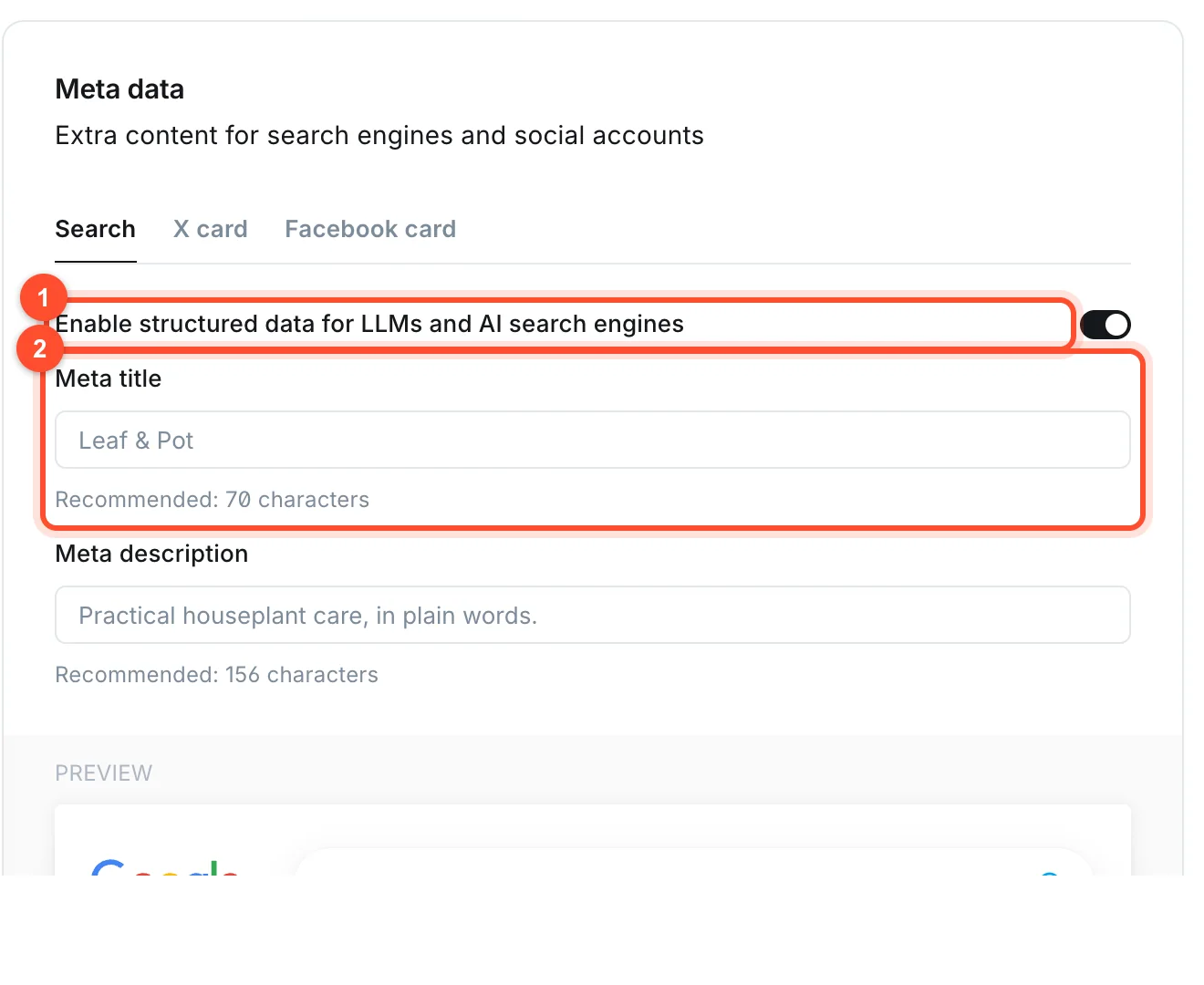
Still under General settings, open Meta data. This controls how your homepage appears in search results and when shared.
You will find:
- Enable structured data for LLMs and AI search engines. A switch that adds extra structured data to your pages to help AI-powered search understand them. Leave it on.
- Meta title. Ghost recommends up to 70 characters here, and falls back to your site title if you leave it empty.
- Meta description. Ghost recommends up to 156 characters. It falls back to your site description.
- X card and Facebook card tabs for how the homepage looks when shared on those networks.
- A Google preview underneath, showing roughly how the result will look.
Step 3: Set meta data on every post that matters
In the editor, open Post settings with the icon at the right of the top bar, then open Meta data.
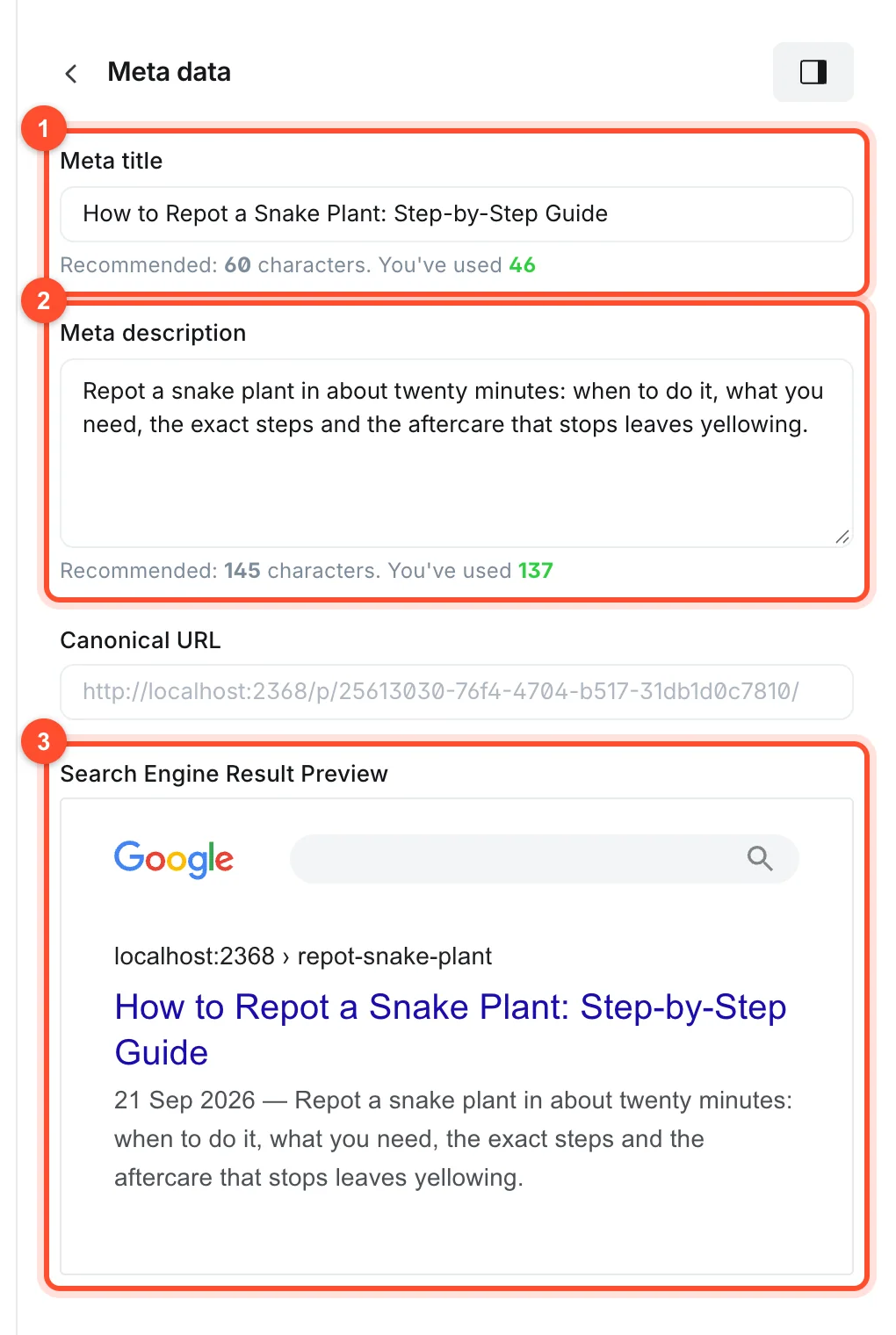
- Meta title. What search results show as the blue link. Ghost recommends 60 characters, and counts them for you, so it is not cut off. Put the main topic near the front.
- Meta description. The grey text under it. Ghost recommends 145 characters. It does not change rankings directly, but a clear description earns more clicks.
- Canonical URL. Leave it as it is unless the post was originally published elsewhere and you want to credit that source.
- Search Engine Result Preview. A live preview of the result. Use it to check that your title and description read well.
If you leave the title and description empty, Ghost falls back to the post title and excerpt, which is fine for casual posts. For posts you want to rank, write them.
A good pattern for a meta title is the topic, then the benefit, for example: "How to Repot a Snake Plant: Step-by-Step Guide". The description should say what the reader will get and end with a reason to click.
Step 4: Get your URLs right
Short, readable URLs help. Ghost's default is yourdomain.com/post-slug/, which is exactly what you
want. Two rules:
- Edit the Post URL of each post to the essential words before you publish.
- Never change a live URL without adding a redirect. See how to set up redirects in Ghost.
Step 5: Connect Google Search Console
Search Console is free and shows you what people searched to find you, which pages are indexed and which have problems. Setting it up:
- Go to Search Console and add your site as a property, using your full site address.
- Choose a verification method. The simplest with Ghost is the HTML tag method. Copy the meta tag Google gives you.
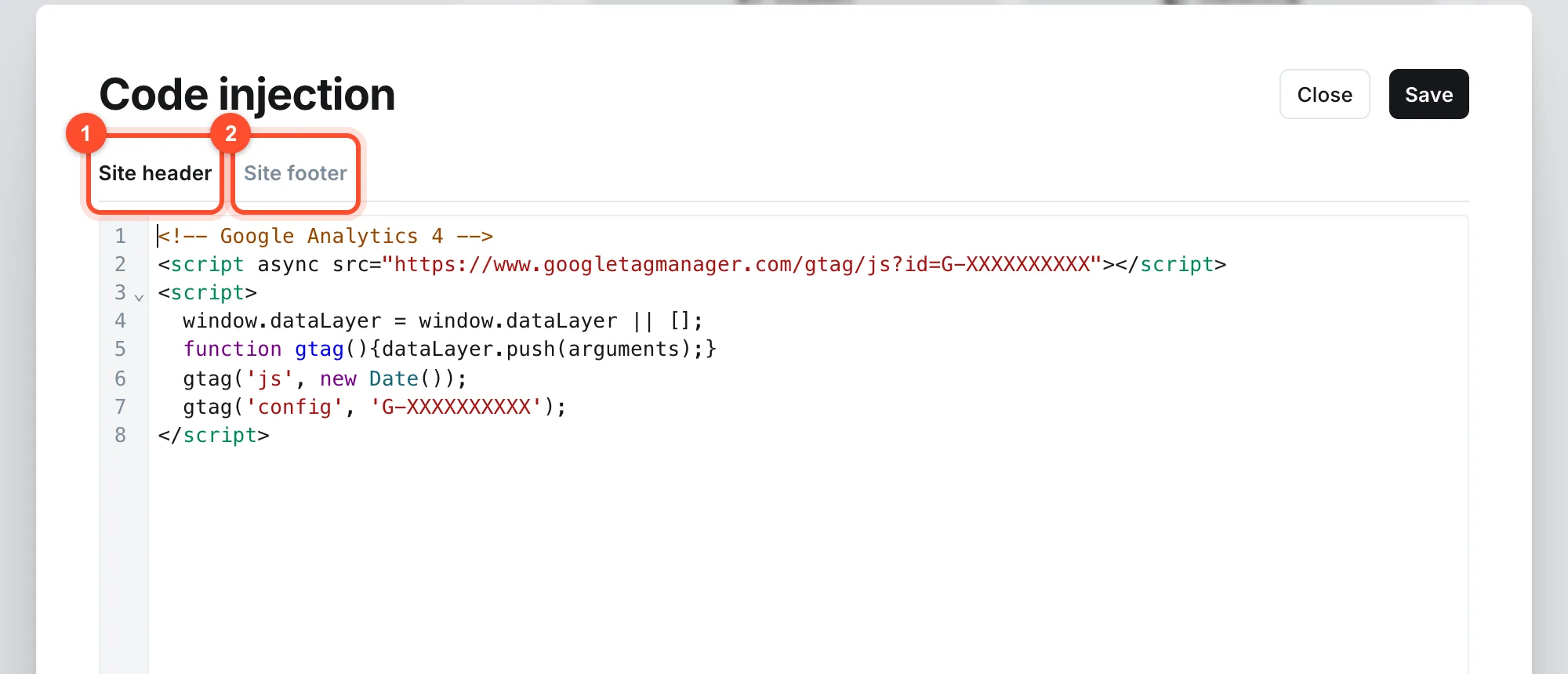
- In Ghost open Settings, scroll to Advanced, find Code injection and click Open.
- Paste the tag into the Site header tab and click Save.
- Return to Search Console and click Verify.
The DNS record method also works and does not touch your site, if you can edit your domain's DNS.
Step 6: Submit your sitemap
In Search Console open Sitemaps, enter sitemap.xml and submit. Google now knows every page
Ghost lists. Check back after a few days to see how many were discovered and indexed.
Step 7: Do the same for Bing
Bing Webmaster Tools can import your site straight from Search Console, and its index also feeds several other search engines and AI assistants. It takes two minutes and is worth doing.
Step 8: Make sure your site is not blocking itself
Two mistakes catch people out.
- A private site. Ghost can make a site private, which blocks search engines. If your posts are not being indexed, check that private mode is off.
- Leftover noindex tags from a theme or a code injection snippet copied from a tutorial.
View the source of a live post, search for noindex, and check there is no match.
Step 9: Speed and mobile
Search engines look at page speed and mobile usability. Ghost is fast by default. You can keep it that way by compressing images before upload, keeping theme scripts to a minimum and avoiding heavy third-party widgets in code injection. Hosting matters too: each blog here runs in its own container with dedicated resources, so another site's traffic spike does not slow yours down.
A quick SEO checklist
- Site title and description written
- Site meta data checked
- Meta title and description on your important posts
- Short, final URLs before publishing
- Alt text on images
- Search Console verified and sitemap submitted
- Bing Webmaster Tools connected
- No noindex on live pages
- HTTPS working on your domain
Ready to write pages that rank? Continue with how to write SEO-friendly Ghost posts.
FAQ
Is Ghost good for SEO?
Yes. It ships with a sitemap, canonical tags, structured data and fast pages, which is more than most platforms provide without plugins. Rankings still depend on the quality and relevance of what you write.
Do I need an SEO plugin for Ghost?
No. Ghost has no plugin system, and it does not need one for the basics. Meta titles, descriptions, canonical URLs and social cards are built in.
How long does it take for a new Ghost post to appear on Google?
Anywhere from a few hours to a few weeks. Submitting your sitemap and requesting indexing for a URL in Search Console usually speeds it up. New sites take longer than established ones.
How do I find my Ghost sitemap?
Add /sitemap.xml to your domain, for example yourdomain.com/sitemap.xml. It links to separate
sitemaps for posts, pages, tags and authors.
Does the meta description affect rankings?
Not directly, but a good one raises your click-through rate, which matters in practice. Google may also rewrite it to match a search.
Fast, secure hosting is part of good SEO. See how it works or start your blog.