Images make posts easier to read and more likely to be shared, and they are also the most common reason a blog is slow. Getting them right takes a few habits rather than any special tool. This guide covers adding images in Ghost, preparing them, and the settings that matter for search.
Where images go in Ghost
There are four places you will use them:
- Feature image. The large image at the top of a post, shown on your homepage and post cards.
- Images in the body. Added with the image card or gallery card.
- Social images. The picture shown when your link is shared.
- Site branding. Logo, icon and cover image, set in the design settings.
Step 1: Prepare the file before uploading
This is where most of the speed win comes from. Before you upload:
- Resize to the size you need. A feature image rarely needs to be wider than about 2,000 pixels. Body images can be 1,200 to 1,600 pixels wide.
- Compress it. A photo from a phone can be 5 MB. After resizing and compressing it can be under 300 KB with no visible difference. Free tools such as Squoosh, TinyPNG and ImageOptim do this.
- Pick the right format.
| Format | Best for |
|---|---|
| JPEG | Photos |
| PNG | Screenshots, graphics and images needing transparency |
| WebP | Photos and graphics at a smaller file size, well supported by modern browsers |
| SVG | Logos and simple icons, which stay sharp at any size |
- Name it sensibly.
snake-plant-repotting-step-3.jpgis better thanIMG_4821.jpg. Use lower case words separated by hyphens.
Ghost also creates smaller versions of uploaded images for different screen sizes, but it cannot make a huge original small, so compress before you upload.
Step 2: Add a feature image
In the editor, hover above the title and click Add feature image. Upload the file. Under the image there is a caption line and an Alt button. Click Alt and type a short description.
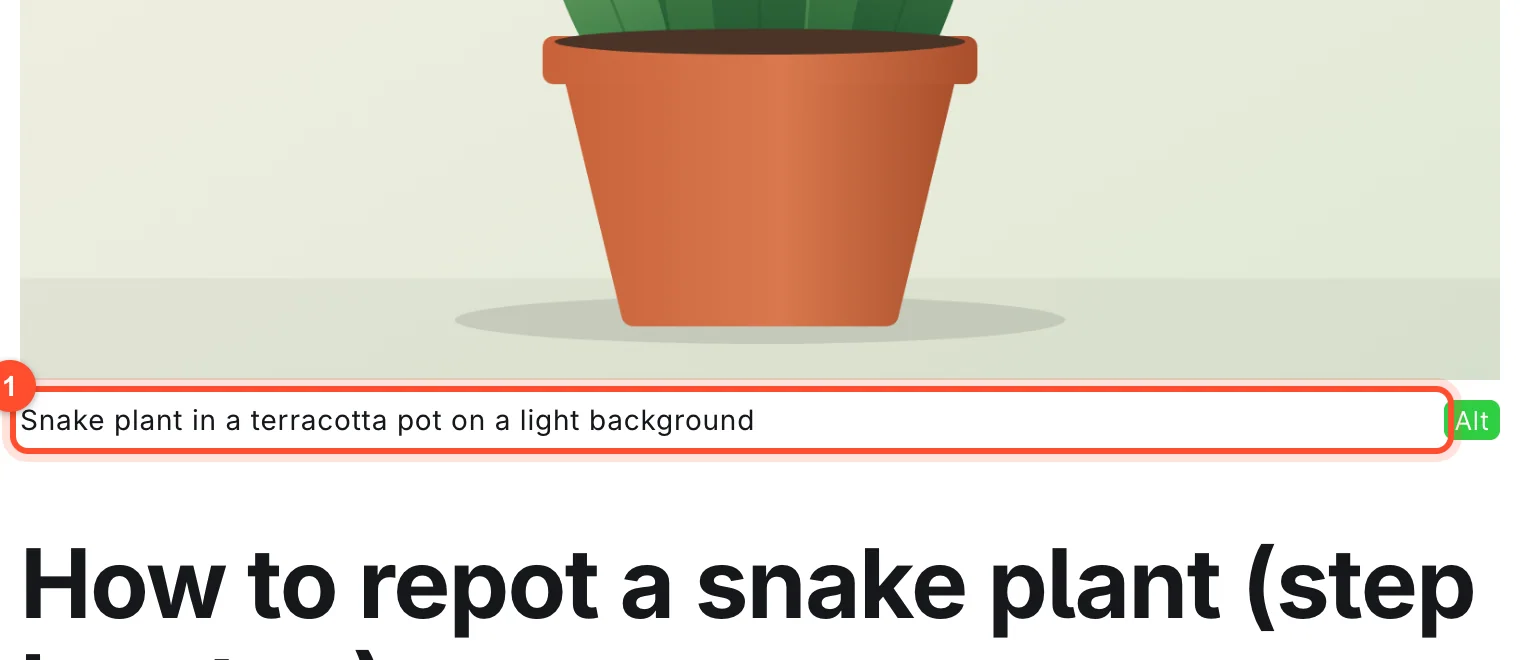
Choose a feature image that works when cropped, because themes show it at different shapes on the homepage, in cards and in the post header. Keep the subject near the centre.
Step 3: Add images in the body
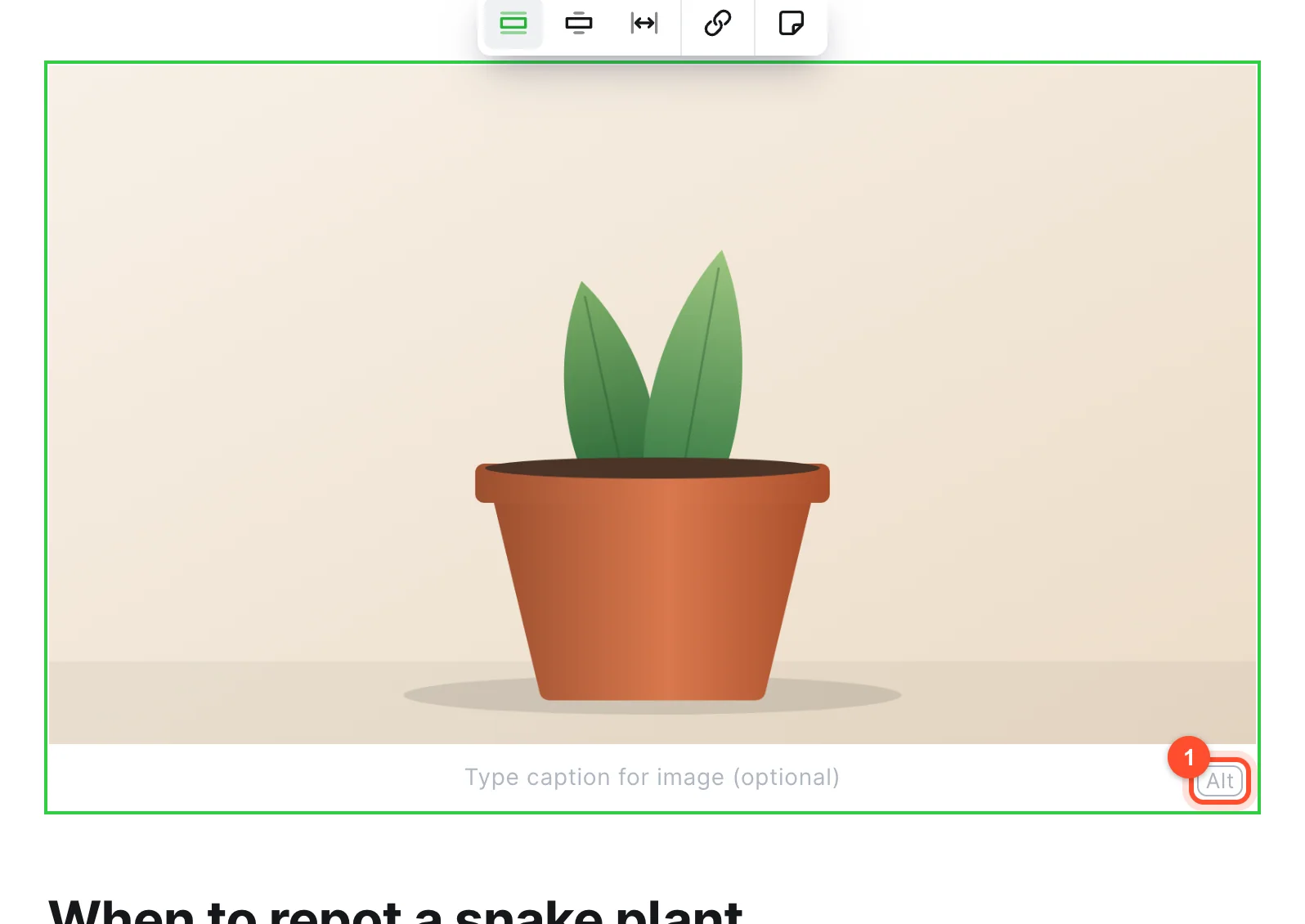
Type /image on an empty line, or drag a file into the editor. After it uploads, click the image. A
small toolbar appears above it for layout options and a link, and under it there is a caption line that
reads "Type caption for image (optional)" and an Alt button.
To show several images together, use the Gallery card (/gallery). All the card types are described
in the editor guide.
Step 4: Write good alt text
Alt text describes an image for people who cannot see it, and search engines use it to understand it. It is one of the easiest wins in SEO.
- Describe what the image shows in a short sentence.
- Include the topic naturally if it fits, but never stuff keywords in.
- Skip "image of" or "picture of." Screen readers already say it is an image.
- Leave it empty for purely decorative images, so screen readers skip them.
| Weak | Better |
|---|---|
image1 |
Snake plant lifted out of its pot with roots visible |
snake plant snake plant repot best snake plant |
Fresh potting mix being added around a snake plant |
Step 5: Set the social sharing image
When someone shares your post, the preview picture usually comes from the post's feature image, or from a separate image if you set one in the post's social card settings. Open Post settings with the icon at the right of the top bar and look for the Facebook card and X card sections.
A wide image around 1,200 by 630 pixels works well. Put important text and faces in the middle, as platforms crop differently.
Step 6: Site branding images
Click Settings at the bottom of the sidebar and open Design & branding to set your Publication icon, Publication logo and Publication cover. Details are in the theme and design guide. Use an SVG or a clean transparent PNG for the logo.
Speed: why image size matters for SEO
Search engines consider how quickly a page loads, especially on phones. Large images are usually the biggest part of a page. To keep it quick:
- Compress every image before upload.
- Do not upload a 4,000-pixel image to display it 700 pixels wide.
- Use fewer, better images rather than many mediocre ones.
- Check your pages with Google's PageSpeed Insights, and fix what it flags for images.
Original images vs stock
Where you can, use your own screenshots, photos and diagrams. They are more useful to readers and
harder for a competitor to copy. Ghost's card menu also includes an Unsplash card (/unsplash) for
free stock photos. If you use other third-party images, check the licence and give credit where
required, and never hotlink images from other sites.
Common mistakes
| Mistake | Fix |
|---|---|
| Uploading full-size camera photos | Resize and compress first |
| Missing alt text | Add a sentence to every meaningful image |
Filename like IMG_0001.jpg |
Rename before uploading |
| Text baked into an image | Put important text in the post as real text |
| Feature image cropped badly | Keep the subject in the centre |
| Copying images from other sites | Use your own or properly licensed ones |
FAQ
What size should Ghost feature images be?
Around 1,600 to 2,000 pixels wide is plenty for most themes. Compress the file so it is well under 500 KB where possible.
Does alt text help SEO?
Yes. It helps search engines understand the image, can bring traffic from image search, and is essential for accessibility.
What image format is best for Ghost?
JPEG for photos, PNG for screenshots and transparency, WebP for smaller files, and SVG for logos.
Can I add an image gallery in Ghost?
Yes. Use the Gallery card from the / menu to place several images in a grid.
Should I host images on Ghost or somewhere else?
Ghost is fine for most blogs. It stores uploads with your site and serves them with your pages. Only look at a separate image service if you serve very large volumes.
Fast pages start with fast hosting. See how it works or create your Ghost blog.