Ghost separates what you write from how your site looks. That means you can change the whole design without touching a single post. This guide covers the two places you will work: Design & branding for your own look, and Theme for swapping the underlying template.
Themes in one paragraph
A theme is a packaged set of templates and styles that controls layout, typography and features like the homepage design and post cards. Ghost ships with a default theme called Source and offers several other official ones. You can also upload themes from third parties or build your own. Changing the theme changes how your posts are presented, not the posts themselves.
Step 1: Open the design settings
Click Settings at the bottom of the left sidebar. Scroll to the Site section of the menu on the left. You will see Design & branding, Theme, Navigation and Announcement bar. We will go through them in order of how often you will use them.
Step 2: Customize your branding
Open Design & branding. Ghost shows a full-screen editor with a live preview of your homepage on the left, with switches for the homepage and a post, and desktop and mobile views. The controls are on the right, under two tabs: Brand and Theme.
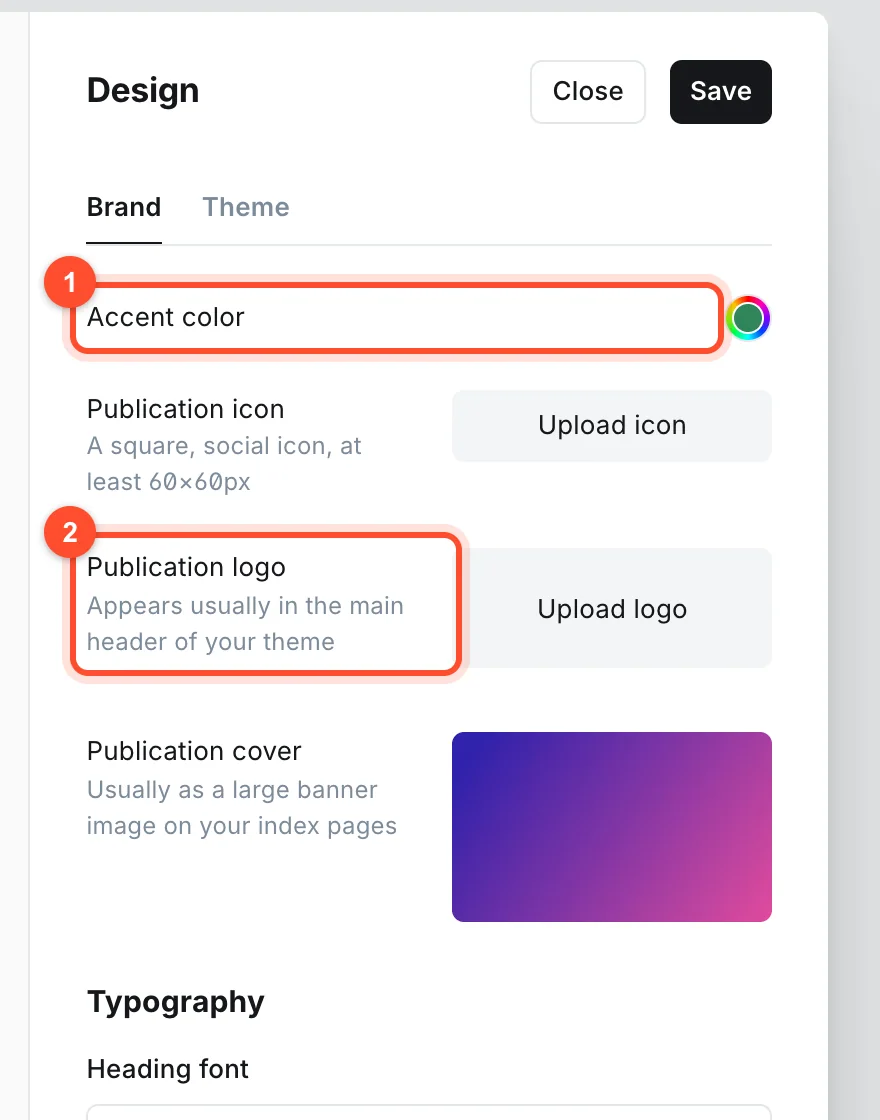
On the Brand tab you can set:
- Accent color. Many themes use it for links, buttons and highlights. Choose one with enough contrast against white, or your links become hard to read.
- Publication icon. A square icon, at least 60 by 60 pixels, used in browser tabs and social profiles.
- Publication logo. Appears in the main header of your theme. Upload a transparent PNG or SVG. Keep it simple and readable at small sizes.
- Publication cover. Usually a large banner image on your index pages.
- Typography. A Heading font and a Body font. Both start as "Theme default", and you can pick another from the list.
Click Save when you are happy.
Step 3: Use the theme's own options
The other tab, Theme, holds settings defined by the theme you are using. What appears depends on the theme. Typical examples are layout choices and whether to show author names. Changing them does not alter your content.
Step 4: Change the theme
Back in Settings, open Theme and click Change theme. Ghost opens a theme browser with two tabs: Official themes and Installed, and an Upload theme button in the corner.
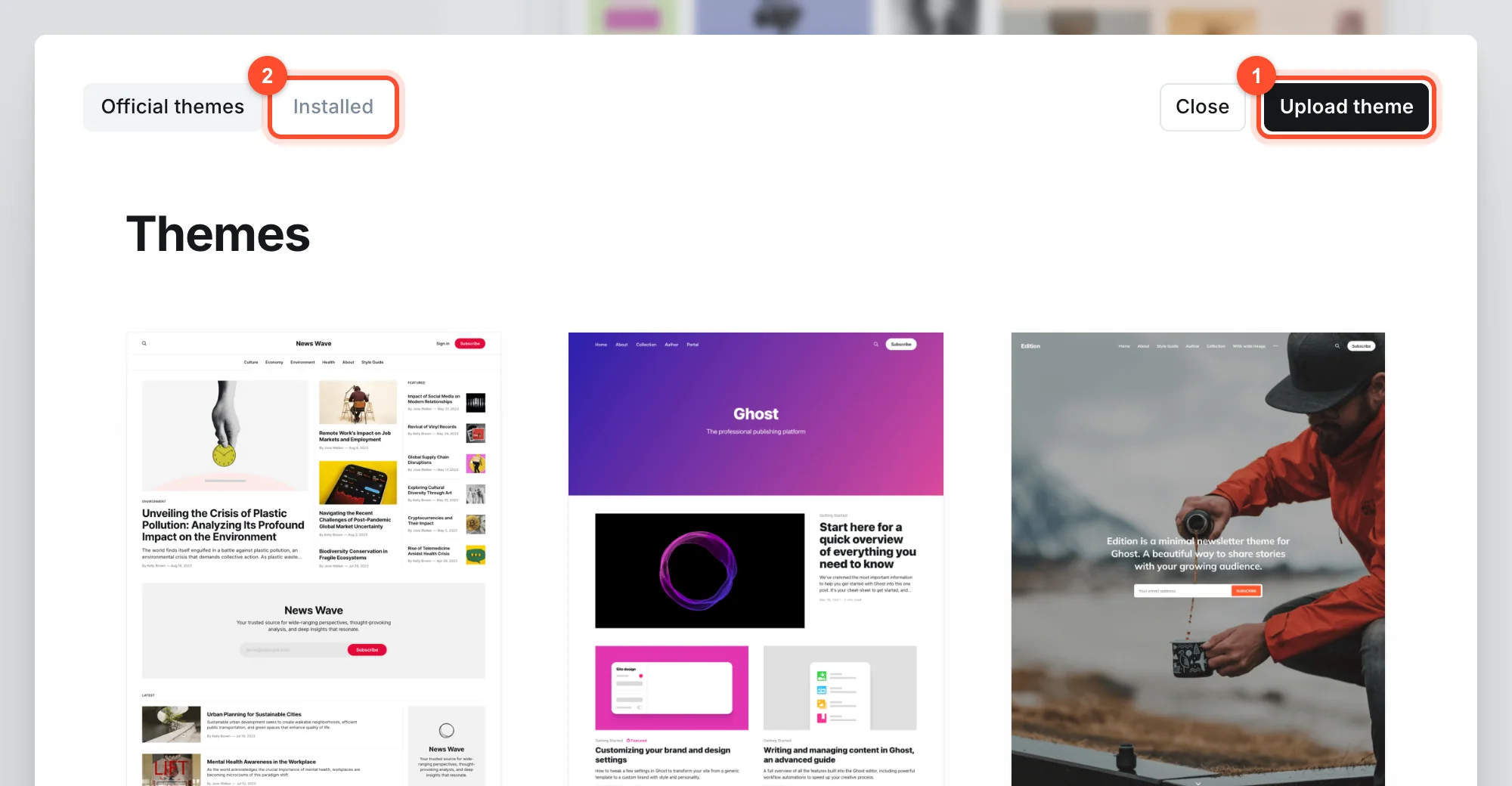
To install an official theme, pick one from the list and follow the prompts to install it, then activate it. Your site switches to the new theme straight away. Because posts are separate from the theme, all your content carries over. If something looks wrong, switch back the same way.
Step 5: Upload a theme
If you bought a premium theme or built your own:
- Get the theme as a
.zipfile. Do not unzip it. - In the theme browser, click Upload theme and select the file.
- Ghost checks it for compatibility. If it reports errors, the theme was built for a different Ghost version and may not work correctly.
- Activate it.
Only upload themes from sources you trust. A theme runs on every page of your site and can contain scripts.
Step 6: Add an announcement bar
Open Announcement bar in the settings to display a short message across the top of your site. It suits a sale, a new launch or a notice. Keep the text short and remove it when it is out of date, because a stale banner looks neglected.
Step 7: Check every device
After any design change, view your site on a phone, then a tablet, then a desktop. Look at:
- The homepage and a single post
- A tag page and an About page
- Whether text is readable and buttons are easy to tap
- Whether the logo and images are the right size
Choosing a theme
| If you want | Look for |
|---|---|
| A text-first magazine feel | A theme built around the homepage feed and featured posts |
| A simple, quick personal blog | The default Source theme |
| A newsletter-led site | A theme with prominent signup sections, such as Edition |
| A portfolio | A theme with large image cards |
Do not spend your first week theme shopping. Pick a clean one, set your accent color and logo, and spend the time writing. You can change it later without losing anything.
Design and SEO
Design changes affect search performance in two ways. Slow, heavy themes hurt page speed, so prefer light ones and check the demo on a phone. And a theme that hides headings or breaks the heading order harms readability. Ghost's default themes follow good practice. See the SEO settings guide for more.
FAQ
Will changing my theme delete my posts?
No. Posts, pages, tags and images are stored separately from the theme. Only the presentation changes.
Can I edit my theme's code?
Yes, if you build or download a theme you can edit its templates and re-upload the zip. Keep a copy of the original, and make changes in small steps.
Are Ghost themes free?
Some official themes are free. Third-party themes range from free to around a hundred dollars as a one-off purchase, and there is no per-month theme fee.
Why does my new theme look different from the demo?
Demos often use sample content, images and settings. Match the demo by adding feature images, tags and the theme's own options.
Can I use more than one theme?
Only one theme is active at a time. You can keep others installed and switch between them.
Ready to give your site a fresh look? Start your Ghost blog. Themes, uploads and design settings all work exactly as they do on any Ghost 6 site.