Memberships and newsletters are the reason many people choose Ghost over a traditional blog platform. Readers can subscribe, sign in with a link and receive your posts by email, and you can add paid tiers later. It works well, but it depends on email being set up correctly, which is where most first attempts go wrong. This guide covers the settings and the email side together.
How the pieces fit
Three separate things get called "email" in Ghost:
| What | Purpose | Sent through |
|---|---|---|
| Transactional email | Sign-in links, signup confirmations, staff invitations, password resets | Your site's mail transport, usually SMTP |
| Newsletters | Bulk email of your posts to subscribers | Mailgun, connected in Ghost's newsletter settings |
| Your own replies | Normal email from your own address | Your mail provider, nothing to do with Ghost |
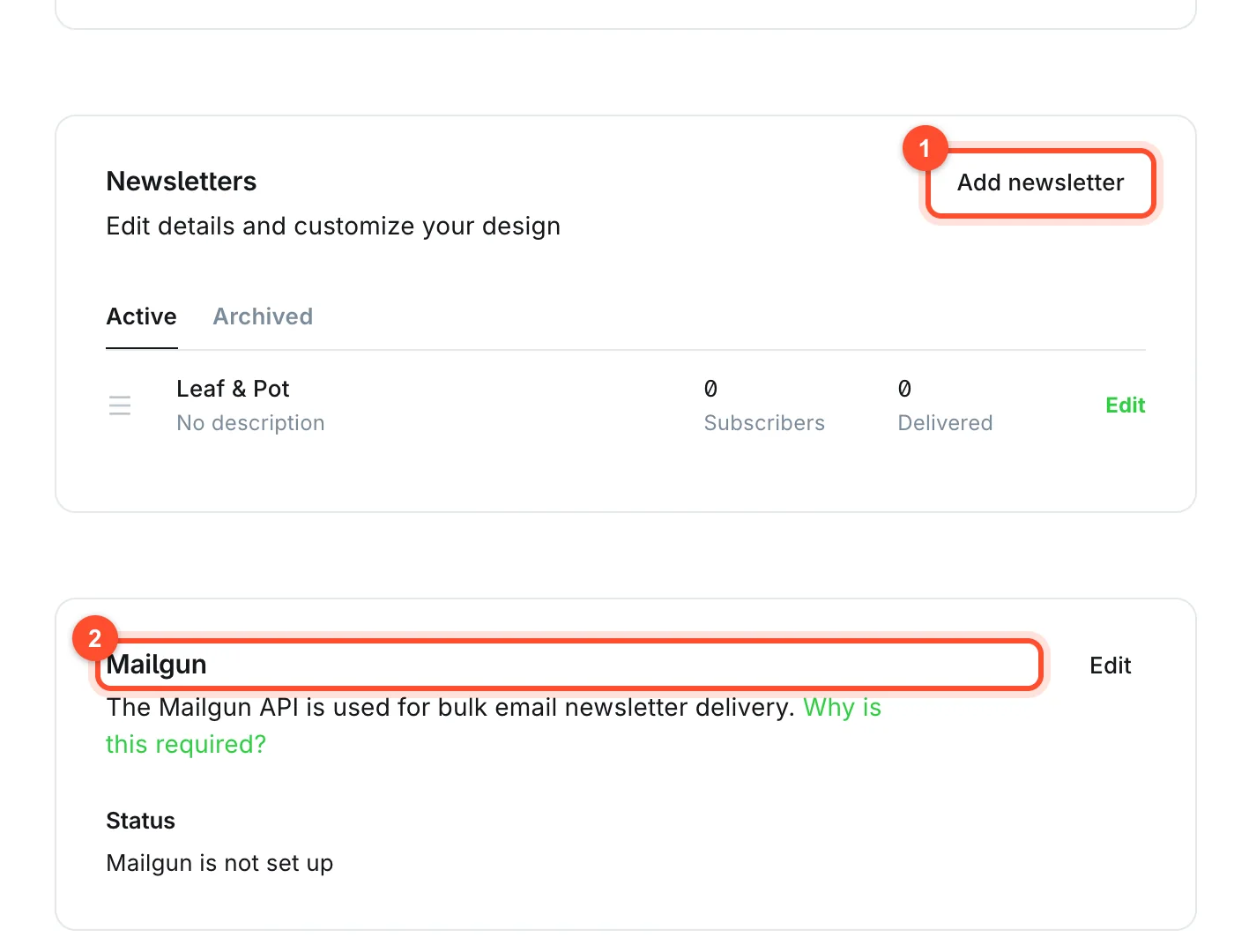
Ghost is explicit about the second row. In the newsletter settings a Mailgun card says "The Mailgun API is used for bulk email newsletter delivery", and shows the status "Mailgun is not set up" until you connect it. Knowing that these are two different delivery paths saves a lot of confusion later.
Step 1: Decide who can sign up
Click Settings at the bottom of the left sidebar and scroll to the Membership section. Open Access. Ghost asks four questions, each with its own menu.
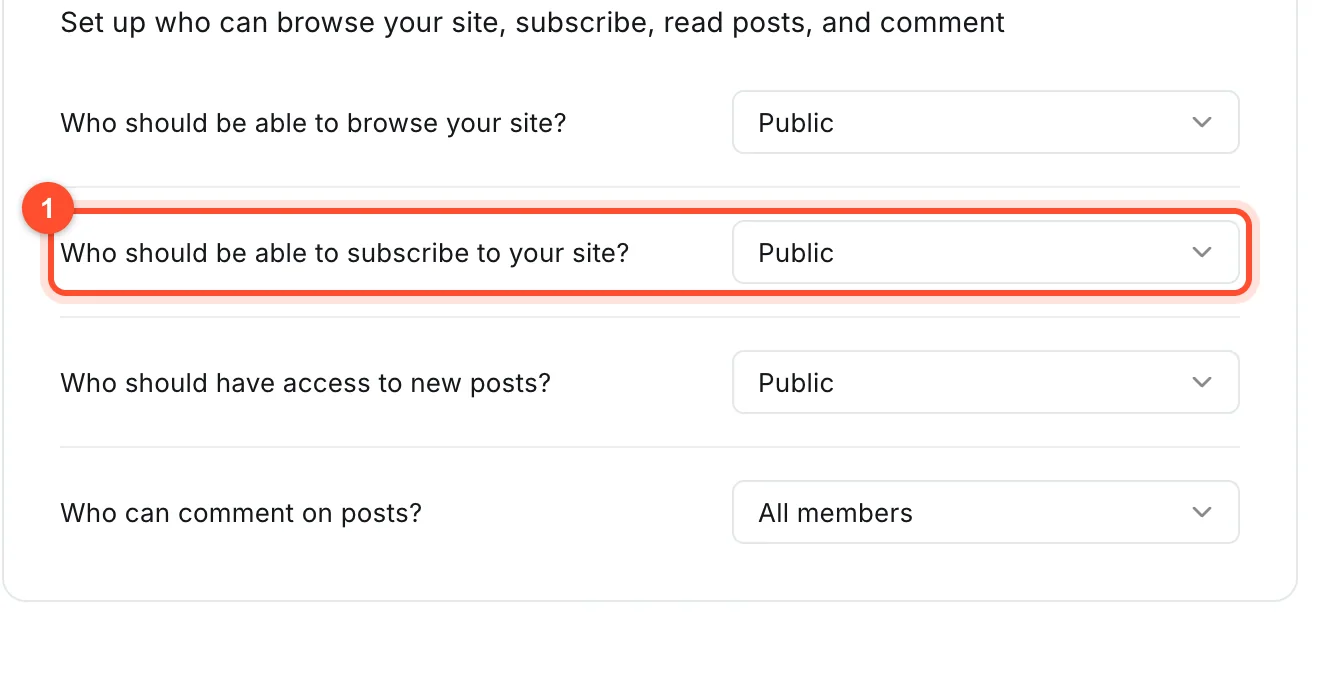
- Who should be able to browse your site?
- Who should be able to subscribe to your site?
- Who should have access to new posts?
- Who can comment on posts?
Start with the defaults, which are open to the public, if you want to grow an audience. Below these there is a Spam filters box where you can block signups from specific email domains.
Step 2: Turn on email sending for your site
A new Ghost site cannot send email until you configure it. Until then, sign-in links never arrive, so people cannot join, and that is a confusing thing to debug after launch.
On our platform, email is off by default on a new site. Switch on the shared mail relay for your site from the panel, and Ghost's sign-in links, confirmations and staff invitations start sending. Do this before you invite your first member. If you host elsewhere, configure SMTP in your Ghost config or ask your host how.
Know the limit. The shared relay on our platform allows 100 messages a month per site, which covers sign-in links and invitations for a small site. The Extra Mail Credits add-on raises it to 5,000 for $1 a month. Check the add-ons page for current terms. If your sign-in emails suddenly stop, the monthly allowance is the first thing to look at.
Step 3: Test the sign-in flow
Open a private browser window, go to your site and use the signup form or the subscribe link in the header. Enter an address you control, and check that:
- The email arrives within a minute
- It is not in spam
- The link signs you in and takes you back to your site
Do this now, not after sending a hundred invitations.
Step 4: Set up newsletters
In Settings, under Membership, open Newsletters. Ghost supports more than one newsletter, so you can offer separate lists for different topics. The card lists your active newsletters, with subscriber and delivery counts, and an Add newsletter button.
For each newsletter you set:
- Name and description
- Sender name and address, which readers see in their inbox
- Reply-to address
- Design options such as header image, fonts and footer text
Use a sender address on your own domain. Mail from an address that does not match your domain is more likely to be filtered.
To send newsletters at scale, connect Mailgun using the Edit button on the Mailgun card. You need a Mailgun account and your domain's DNS records for it. Ghost sends the bulk email through Mailgun and the sign-in mail through your normal mail transport.
Step 5: Choose default recipients
Ghost lets you choose who new posts are emailed to by default. The setting is called Default Newsletter recipients, and the default reads "Whoever has access to the post". If you prefer to choose each time, pick the option that leaves newsletters off for new posts. It is a sensible default while you are still learning.
Step 6: Add signup forms to your site
Readers will not subscribe if they cannot find the form. Ways to add one:
- The theme's subscribe button. Most themes include one in the header.
- The Signup card. Insert it inside a post with
/signup, as covered in our editor guide. - A page. Create a page with a signup card and link to it from your navigation. See pages and navigation.
Say what people get and how often. "One practical Ghost tutorial every Friday" converts better than "Subscribe to my newsletter".
Step 7: Send your first newsletter
Write a post as normal and click Publish. In the publish flow, the newsletter row lets you choose who to email. Confirm, and the post is published on your site and sent by email to the chosen segment. Details of the publish flow are in the first post walkthrough.
Check how it looks first in the Email tab of the preview.
Step 8: Paid memberships
Ghost supports paid tiers through Stripe. Free members get some content, paid members get more.
To use it you connect a Stripe account and create a tier with a price, under Tiers in the
Membership settings. You can restrict individual posts to members or paid members and mark where the
free preview ends with the Public preview card (/paywall).
Paid memberships involve taxes, refunds and terms. Set the free version up first and add paid later, once you have an audience worth charging.
Email deliverability basics
- Use a sender address on a domain you control.
- Keep your signup confirmed by email link, which protects you from fake addresses.
- Avoid heavy images and spammy phrases in subject lines.
- Watch bounces and complaints, and remove people who never open.
- Include a clear unsubscribe link, which Ghost adds for you.
FAQ
Can I send a newsletter from Ghost for free?
Ghost itself is free software. You pay for hosting, and bulk delivery through Mailgun has its own pricing, with a small free allowance on some plans. Check their current terms.
Why are my Ghost sign-in emails not arriving?
Usually because no mail transport is configured. Turn on your host's mail relay or set up SMTP, then check your spam folder. Test with a private window and an address you control.
Do I need Mailgun to use Ghost memberships?
You need email for sign-in links, which any working SMTP setup provides. Sending bulk newsletters requires Mailgun, which Ghost prompts you to connect.
Can members comment on my posts?
Yes. Ghost has a built-in comments feature for members. The Access settings include a "Who can comment on posts?" menu.
Can I import my existing subscribers?
Yes. Ghost imports members from a CSV file through its import tools. Only import people who agreed to hear from you.
Start with a site that is ready for email. Create your Ghost blog and switch on the mail relay before you invite anyone. See pricing.