Ghost's editor looks simple because it hides most of its power behind two things: a handful of typing shortcuts and a menu of content cards. Learn those and you will write noticeably faster. This guide covers both, based on the current Ghost 6 editor.
The basics: what you see
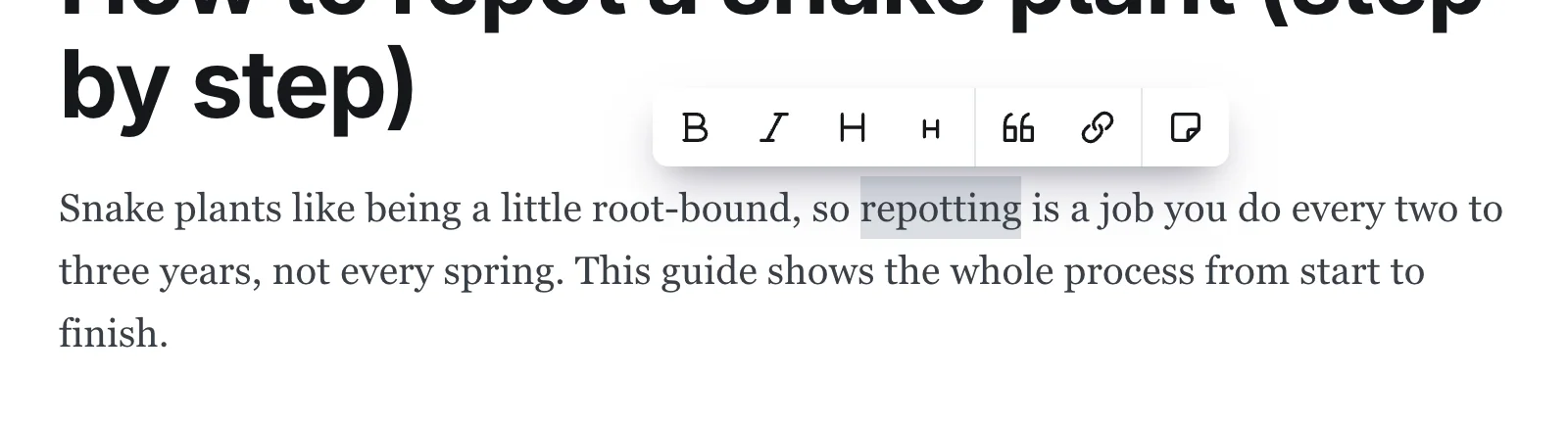
The title sits on top. Press Enter and you move into the body, where you write in blocks. Each paragraph, heading, image or embed is one block. There is no toolbar clutter until you select some text, at which point a small formatting bar appears above your selection.
Typing shortcuts
You can format as you type by starting a line with certain characters.
| Type this | You get |
|---|---|
## then text |
Heading 2 |
### then text |
Heading 3 |
- or * then text |
Bulleted list |
1. then text |
Numbered list |
> then text |
Quote |
--- then Enter |
Horizontal divider |
**bold** |
Bold |
*italic* |
Italic |
`code` |
Inline code |
Use ## for your main section headings and ### for anything beneath them. Skip Heading 1: the
post title already is one, and a page should have a single H1.
Keyboard shortcuts worth memorising
Use Cmd on a Mac and Ctrl on Windows and Linux.
Cmd+Bbold,Cmd+IitalicCmd+Kadd or edit a linkCmd+Zundo,Cmd+Shift+Zredo/on an empty line opens the card menuEsccloses any open menu
The full list is in Post settings, under Keyboard shortcuts.
The card menu
Type / on an empty line, or click the plus icon that appears in the margin. Start typing and the
list filters. Every card also has its own shortcut, shown next to it in the menu, so you can type
/hr and press Enter to add a divider without touching the mouse.
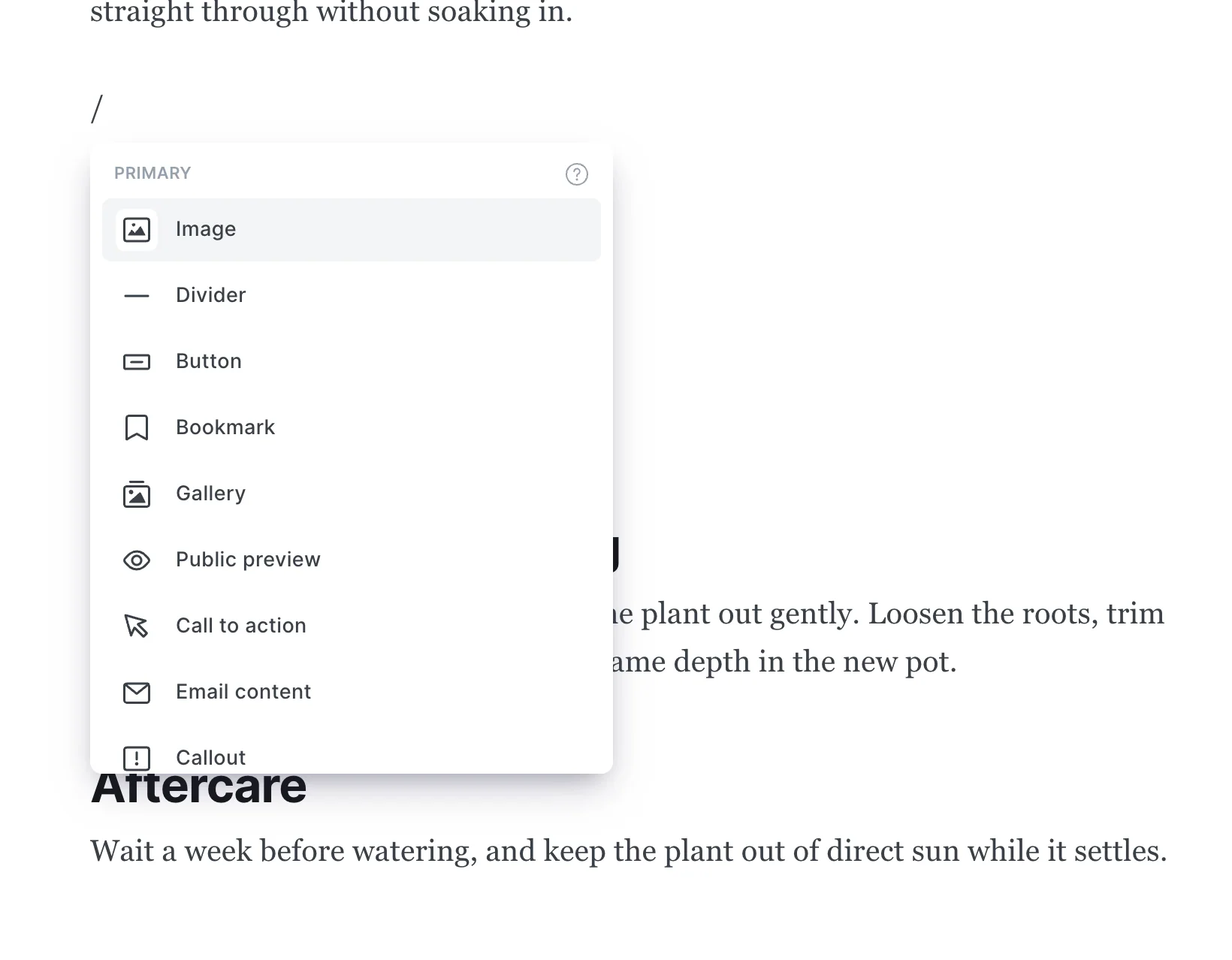
Here is everything in the menu, with the shortcut and what each card is for.
Everyday cards
| Card | Shortcut | Use it for |
|---|---|---|
| Image | /image |
A picture. Click it afterwards to add a caption and alt text. |
| Divider | /hr |
A horizontal line between sections. Use sparingly. |
| Button | /button |
A styled link that stands out from body text, for one clear call to action. |
| Bookmark | /bookmark [url] |
Paste a URL and Ghost shows a card with the page's title, description and image. |
| Gallery | /gallery |
Several images in a tidy grid. Good for before and after shots. |
| Callout | /callout |
A coloured box for a tip or warning. One per post is plenty. |
| Toggle | /toggle |
A collapsible block: a heading that expands to reveal an answer. |
| Header | /header |
A large banner section with a heading, subheading and optional button. |
| Product | /product |
An image, title, description and button, for recommending or selling something. |
Media cards: Video (/video), Audio (/audio) and File (/file) upload straight into the post.
Raw content: Markdown (/md) is for pasting or writing Markdown. HTML (/html) is for raw
HTML such as a custom widget. Only paste HTML you trust, because it runs on your page.
Members and email cards
- Signup (
/signup) adds a member signup form inside the post. - Public preview (
/paywall) marks where the free preview ends on posts limited to members. - Call to action (
/cta) is a highlighted box with a button, aimed at readers of a members post. - Email content (
/email) is content that only appears in the email version of a post, not on the web.
Embeds: YouTube (/youtube [url]), Unsplash, X (formerly Twitter) (/twitter [url]), Vimeo, CodePen,
Spotify, SoundCloud, and Other... (/embed [url]) for anything else that supports embedding. Paste
the address after the shortcut and Ghost turns it into an embed.
How to work faster
- Draft the structure first. Write your headings, then fill in beneath them.
- Paste plain text. If pasted text arrives with odd formatting, use
Cmd+Shift+V(orCtrl+Shift+V) to paste without formatting. - Use the shortcuts.
/md,/hrand/youtubeare quicker than scrolling the menu. - Keep paragraphs short. Three or four lines reads well on a phone.
Formatting for readers and search engines
Formatting is not decoration. A few rules make a post easier to read and easier to rank:
- One H1 (the title), then H2s for sections and H3s under them, in order.
- Descriptive link text. Write "our Ghost SEO guide", not "click here".
- Alt text on every image that carries meaning.
- Lists and tables for anything comparable. Search engines often pull these into featured snippets.
When you are ready to publish, follow the first post walkthrough.
FAQ
How do I add a table in the Ghost editor?
The card menu has no table card. The common options are to write the table in a Markdown card (/md)
using pipe syntax, or paste an HTML table into an HTML card (/html). Both render as a normal table.
How do I add a YouTube video to a Ghost post?
Type /youtube, then paste the video URL. You can also paste the link on its own line and choose the
embed option Ghost offers.
How do I make text bigger or change fonts in a post?
You mostly do not. Ghost keeps type styling in your theme, so headings and paragraphs look consistent across the site. To change fonts globally, use the typography settings in Design, covered in our theme and design guide.
How do I add a line break without starting a new paragraph?
Press Shift+Enter. A plain Enter starts a new paragraph.
Can I use HTML in Ghost?
Yes, through the HTML card. Use it for embeds and small custom snippets, not for whole posts, because raw HTML is harder to edit later.
Want a Ghost site to practise on? Start a blog and it is ready in about a minute.