Every blog needs a few pages that are not posts: an About page, a way to get in touch, maybe a policy or a start-here guide. Ghost handles these as pages, and you link to them from your site's navigation. This guide covers both.
Posts vs pages
The editor is identical, but the two behave differently.
| Posts | Pages | |
|---|---|---|
| Purpose | Time-based writing | Standalone, lasting content |
| Shown on the homepage feed | Yes | No |
| Appear in your RSS feed | Yes | No |
| Can be emailed to members | Yes | No |
| Typical examples | Articles, tutorials, news | About, Contact, Start here, Privacy |
If it belongs in a feed and gets older, it is a post. If it should stay put whatever the date, it is a page.
Step 1: Create a page
In the admin sidebar choose Pages, then click New page in the top right corner. The Pages list looks like the Posts list, with each page showing its status.
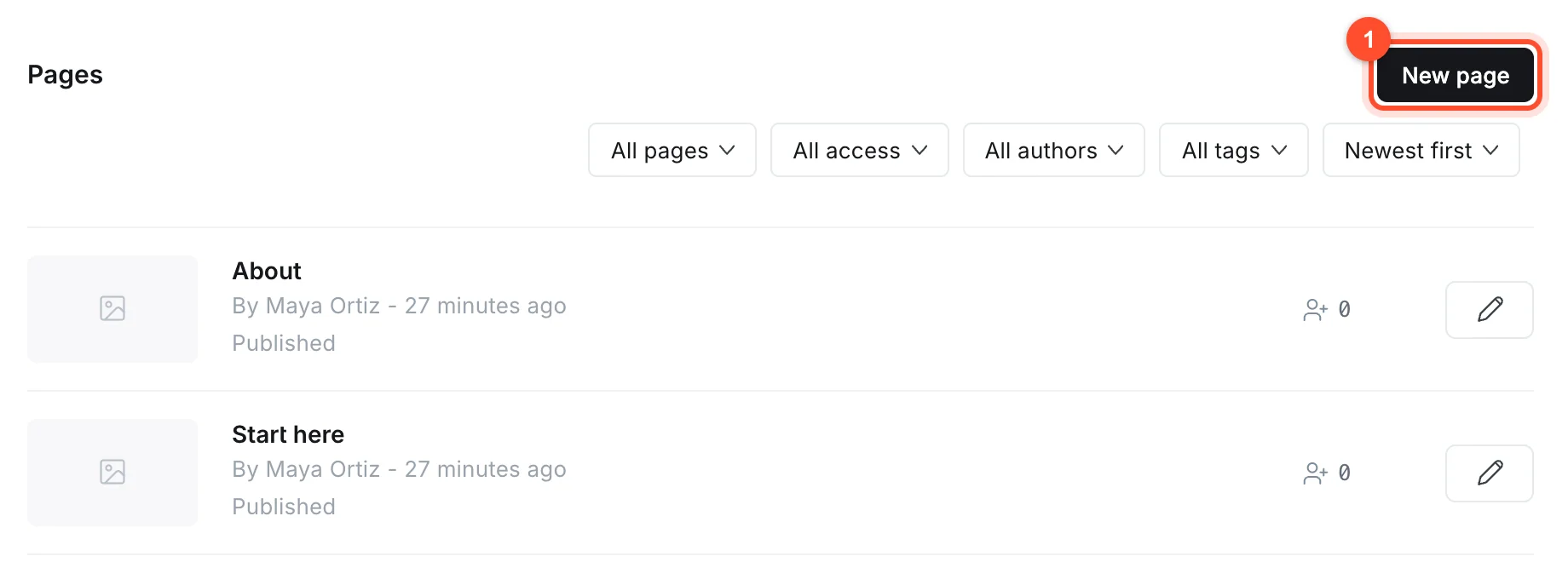
The editor is the same as for posts, so everything in our editor guide applies. Write the content, set the URL in Post settings, and publish.
Page URLs sit directly under your domain, for example yourdomain.com/about/.
Step 2: Write an About page that helps
Your About page is often one of the most visited. A useful one answers, in this order:
- Who is this for? Say who the site helps.
- What will they find here? Your main topics.
- Why should they trust you? Your experience, briefly and honestly.
- What should they do next? Read a guide, subscribe, get in touch.
Add a photo, keep it under 600 words, and link to your best two or three posts.
Step 3: Handle contact
Ghost has no built-in contact form. Your realistic options:
- An email link. Write your address as a link. Simple and reliable, though it invites some spam.
- An embedded form. Use a form service and paste its embed code into an HTML card (
/html). - The Signup card. If your goal is building an audience rather than receiving messages, a
signup form (
/signup) is often more valuable than a contact page.
Whatever you choose, make it easy to find. Readers and potential customers look for it.
Step 4: Add pages to your navigation
Click Settings at the bottom of the left sidebar, scroll to the Site section and open Navigation. Ghost shows a Navigation dialog with two tabs, Primary and Secondary. Each menu item is a row with a label (what people see) and a URL (where it goes).
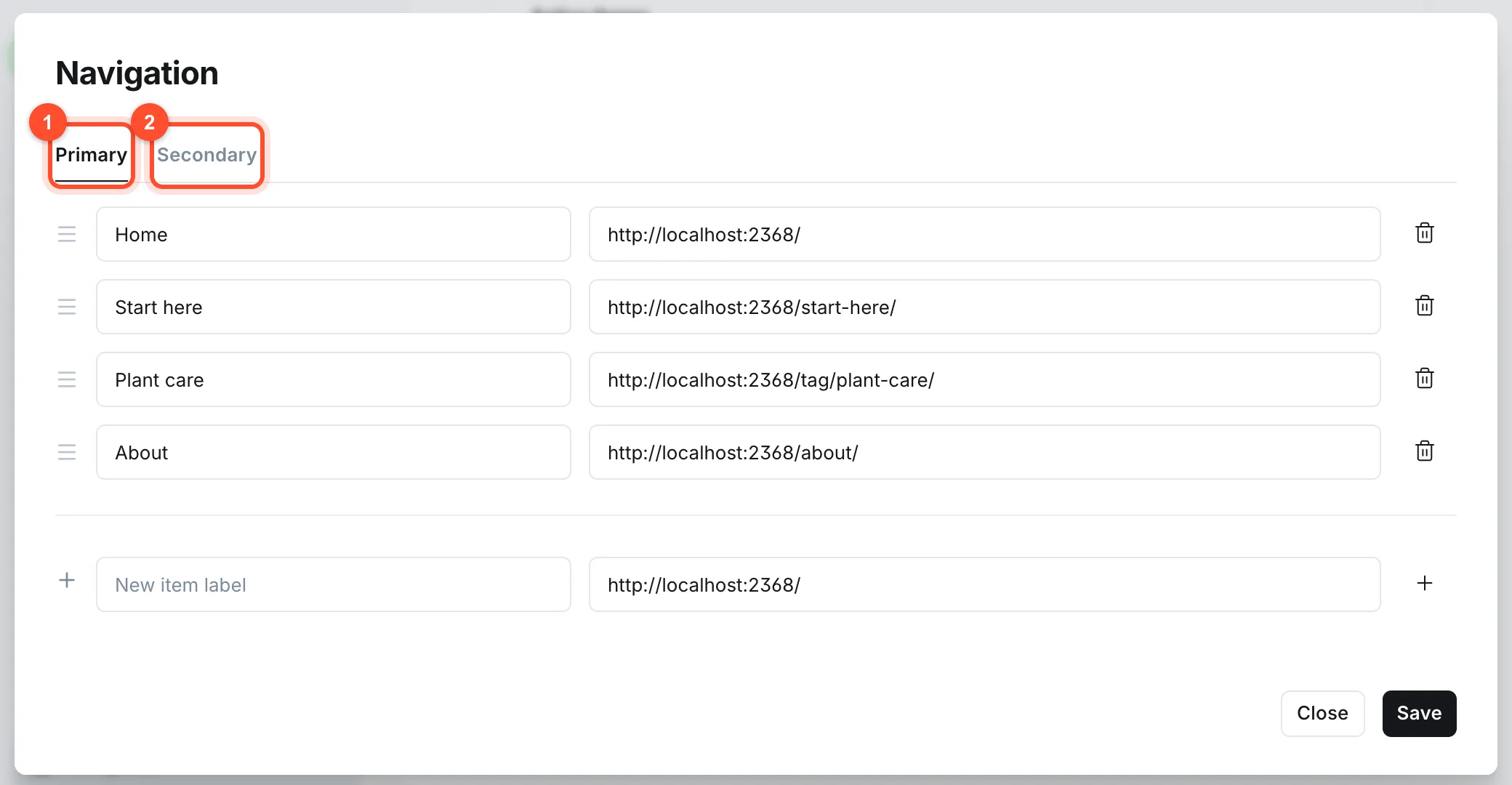
To add an item:
- Type the label in the empty row at the bottom, for example "About".
- Enter the address. Ghost fills in your site address for you, so add the page path after it, such as
/about/. Use a full address for external sites. - Click the plus button at the end of the row.
- Drag the handle at the left of a row to reorder items, or use the bin icon to remove one.
- Click Save.
Where the Secondary list appears depends on your theme. It is often the footer, which makes it a good home for less important links like privacy and terms.
Step 5: Keep the menu short
A menu with more than six or seven items is hard to scan. A good structure for most blogs:
- Home
- Start here (or your best guide)
- Two or three main topics, linking to tag pages
- About
- Subscribe
Link topic items to your tag pages so visitors can browse by subject. See how to use tags in Ghost.
Step 6: Create a start-here page
New visitors do not know where to begin. A "Start here" page listing your best posts by topic gives them a path and gives search engines strong internal links to the posts that matter. Build it with headings and bullet lists, and update it as you publish.
Navigation and SEO
Menu links appear on every page, so search engines treat the pages you link to as important. Use that deliberately:
- Link to the topics and guides you most want to rank.
- Use clear labels. "Guides" is better than "Stuff".
- Do not link to thin or empty pages from the main menu.
- Make sure every important page is reachable within a few clicks from the homepage.
Legal pages
If you collect emails, run ads or sell anything, you need a privacy policy and often terms. Write them for your own situation and have them checked if money or personal data is involved. Link them from the footer.
FAQ
How do I add a page to my Ghost menu?
Open Settings, choose Navigation, add a label and the page's URL, click the plus button, then save. Reorder items by dragging.
Can I hide a page from the menu but keep it published?
Yes. A page only appears in the menu if you add it there. Unlisted pages are still reachable at their URL and can be linked from posts.
How is a page different from a post in Ghost?
Pages are standalone and do not appear in the homepage feed, RSS or newsletters. Posts are time-based and do.
Can I make a page members-only?
Yes. Ghost lets you set access on posts and pages, so you can restrict content to members or paid members if memberships are enabled.
Where does my homepage come from?
Your theme builds it, usually from your latest posts. Some themes let you feature specific posts or choose the layout in the design settings, covered in our theme guide.
Build your site structure properly from day one. Create a Ghost blog and follow this guide with a live site.