Tags are how Ghost organises content by topic. Used well, they give readers a way to browse and give search engines topic pages to rank. Used carelessly, they create dozens of thin, near-empty pages. This guide shows how they work and how to use them properly.
What a tag does
When you add a tag to a post, Ghost:
- Lists the post on that tag's page, at
yourdomain.com/tag/tag-name/ - Can show related posts using the same tag, depending on your theme
- Makes the tag available for navigation menus
Ghost has no separate categories. Tags do that job.
Step 1: Add tags to a post
In the editor, open Post settings with the icon at the right of the top bar and find Tags. Start typing and Ghost suggests existing tags. Press Enter to add one, or type a new name to create it.
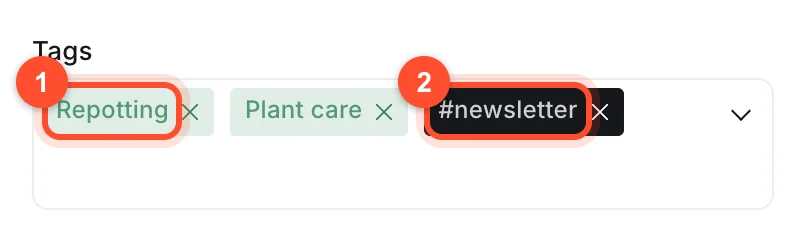
Add one to three tags to most posts. If you need more than three, your tags are probably too specific or your post covers too much.
Primary tags
The first tag on a post is its primary tag. Themes and Ghost use it to decide the main topic: it appears on post cards, and it decides the tag shown on the post. To change the primary tag, drag it to the first position in the list.
Choose the primary tag deliberately. It is the topic you most want the post associated with.
Internal tags
A tag whose name starts with a hash, such as #newsletter or #featured-hero, is an internal
tag. Ghost reminds you of this on the tag screen: "Start with # to create internal tags." Internal
tags are not shown to visitors and do not get public tag pages. They are for you and your theme.
Common uses:
- Marking posts a theme should display specially, if the theme's documentation says to use a particular internal tag.
- Grouping content for your own workflow, such as
#needs-update. - Building custom collections in your theme.
Internal tags are a tidy way to keep organisation without cluttering your public topics.
Step 2: Find and manage tags
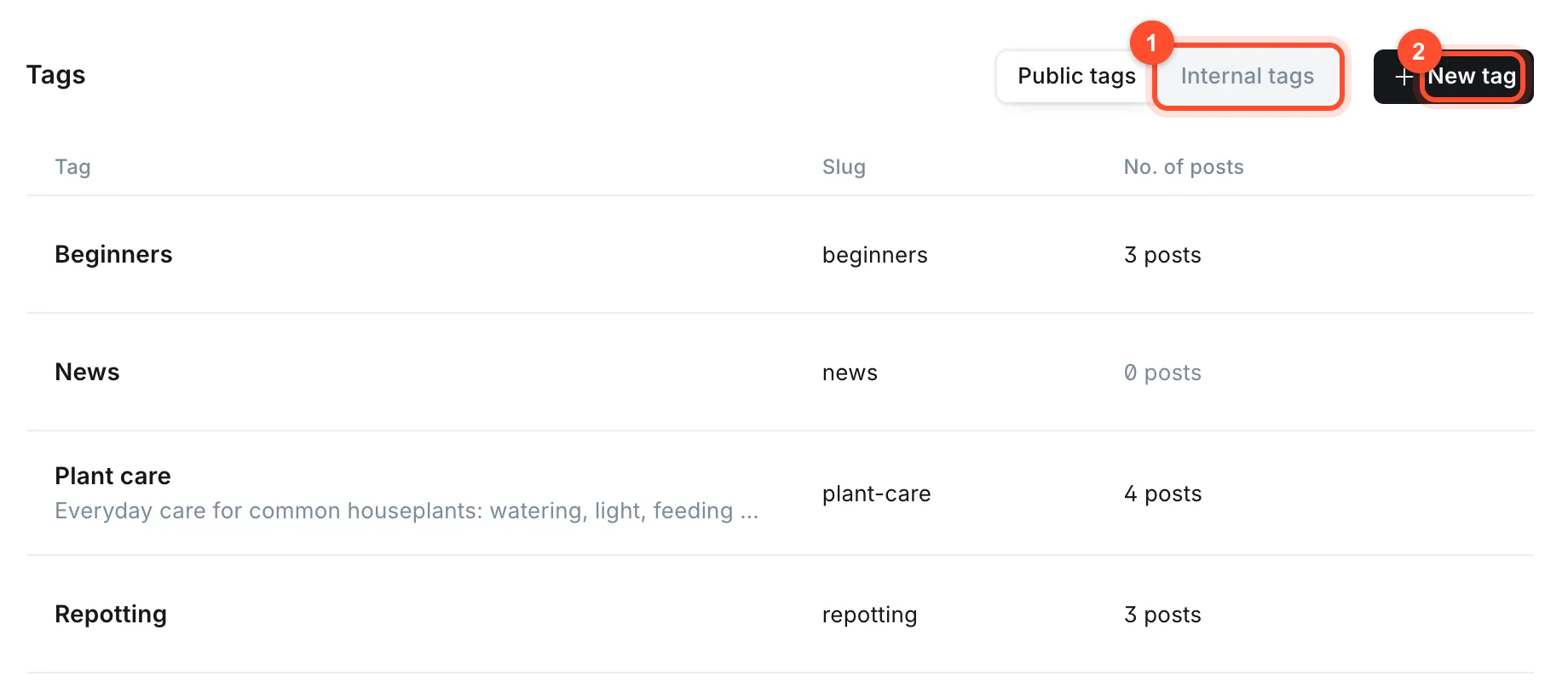
Click Tags in the sidebar. The page has two tabs, Public tags and Internal tags, and a New tag button. Each row shows the tag, its slug and how many posts use it.
Step 3: Edit a tag page
Click a tag to open it. You can set:
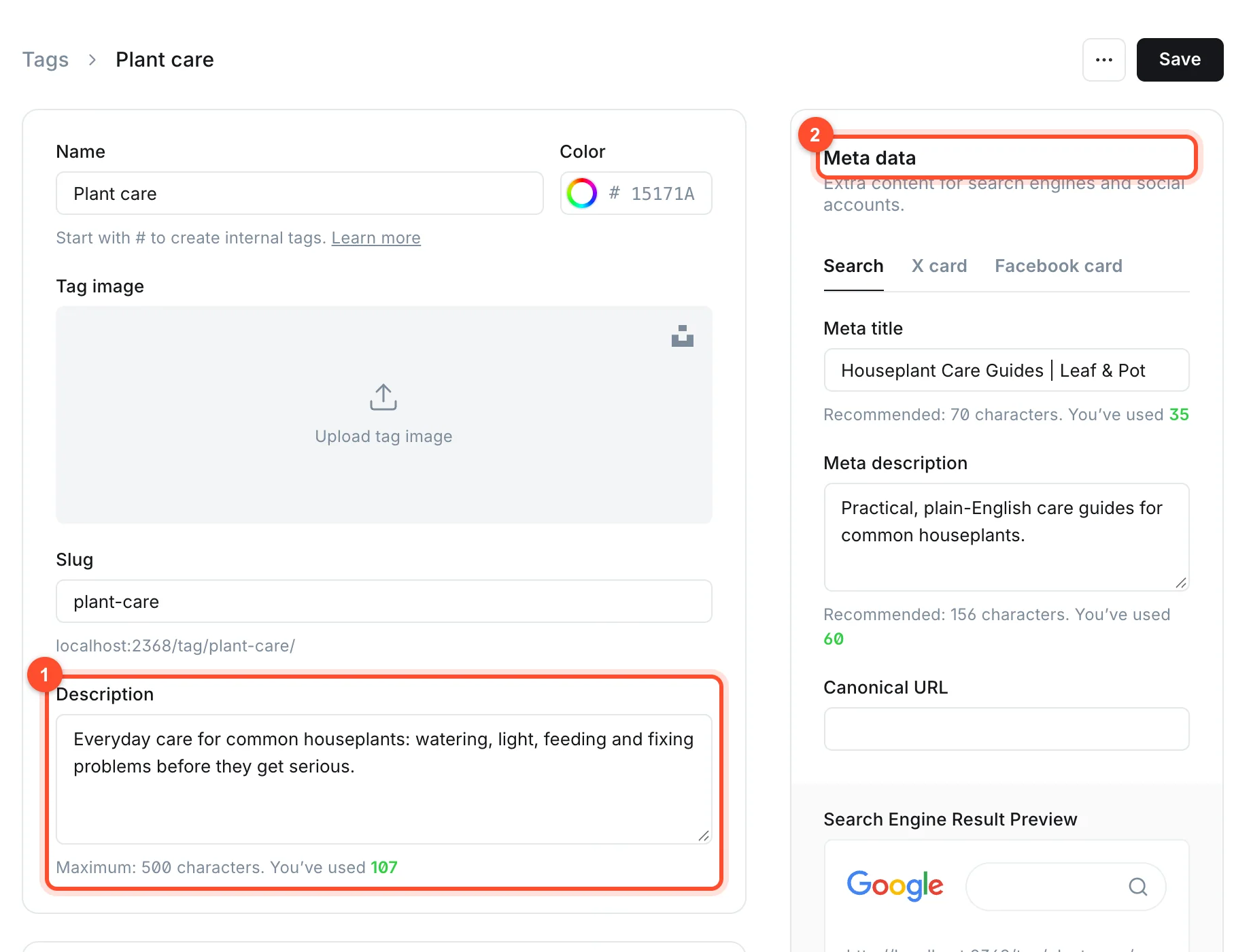
- Name and Color.
- Tag image. Used as a header or card image by some themes.
- Slug. The tag's URL. Keep it short and readable.
- Description. Shown on the tag page by many themes, up to 500 characters. Write two or three sentences that explain the topic. This is valuable text for search engines, so do not leave it empty.
- Meta data. A custom meta title and description for the tag page, the same as for posts. Ghost recommends 70 characters for the title and 156 for the description, and shows a Google preview.
A tag page with a proper description, a few strong posts and a clear title is a page that can rank for a topic on its own. Tag pages also have a Code injection section for advanced use.
Step 4: Plan your tags before you have many
Start with a short list. Most blogs need five to ten public tags. A good way to plan:
- List the main things your blog is about.
- Turn each into a tag with a short, plain name.
- Give each a description.
- Assign every post to at least one.
Write down the list, and stick to it. A new tag should be a decision, not an afterthought.
Tag mistakes that hurt
| Mistake | Problem | Fix |
|---|---|---|
| A new tag for every post | Dozens of thin pages, no topic authority | Reuse existing tags |
| Very similar tags, like "seo" and "SEO tips" | Splits your content across two pages | Merge into one |
| No tag description | Empty page for search engines | Write a short description |
| Tags used as keywords | Meaningless topics | Use tags for real subjects |
| Tags that never get posts | Empty pages linked from your menu | Delete them |
Tags and SEO
Tag pages work like small category hubs. To make them help rather than harm:
- Give each a real description and title. This makes the page worth indexing.
- Link to them from your navigation so visitors and crawlers can reach them.
- Keep them focused. A tag with two posts on the same subject is fine. A tag with one post that will never gain another is not.
- Merge or remove thin tags. Edit posts to use a better tag, then delete the empty one.
Renaming or merging tags
To rename, open the tag and change its name. If you change the slug too, the old tag page address stops working, so add a redirect as described in how to set up redirects in Ghost.
To merge two tags, add the one you are keeping to the affected posts, then delete the other. Ghost has no single merge button, so go through the posts filtered by the old tag.
Filtering posts by tag
In the Posts list you can filter by tag with the All tags menu, which is the quickest way to find everything on a subject and check nothing is missing a tag.
Tags in your menu
Adding tag pages to your navigation gives visitors a way to browse by topic. Use the tag's path,
such as /tag/tutorials/. See pages and navigation.
FAQ
How many tags should a Ghost post have?
One to three. Choose the main topic as the first tag, which becomes the primary tag.
What is the difference between a tag and a category in Ghost?
Ghost has no categories, only tags. Tags fill both roles, and you can present a small set of them as categories in your navigation.
What is an internal tag in Ghost?
A tag beginning with #. It is hidden from visitors and has no public page. It is used for your own
organisation or to trigger special behaviour in a theme.
Do tags affect Google rankings?
Not by themselves. But the tag pages can rank for topic searches if they have a good description and several relevant posts, and tags create useful internal links.
Can I delete a tag without deleting the posts?
Yes. Deleting a tag removes it from the posts that used it. The posts stay published.
Organise your writing so readers can find it. Start a Ghost blog in about a minute.