Ghost has no plugin system, so how do you add analytics, a verification tag or a snippet of custom styling? Through code injection, a built-in feature that inserts your code into every page of your site, or into one post. This guide shows how to use it safely.
What code injection is
It is a pair of boxes where you paste HTML, CSS or JavaScript, and Ghost adds it to your pages for you. There are two levels:
- Site-wide. Applies to every page.
- Per post or page. Applies to one piece of content only.
Step 1: Open site-wide code injection
Click Settings at the bottom of the left sidebar, scroll to the Advanced section and find Code injection. Click Open. Ghost shows a dialog with two tabs:
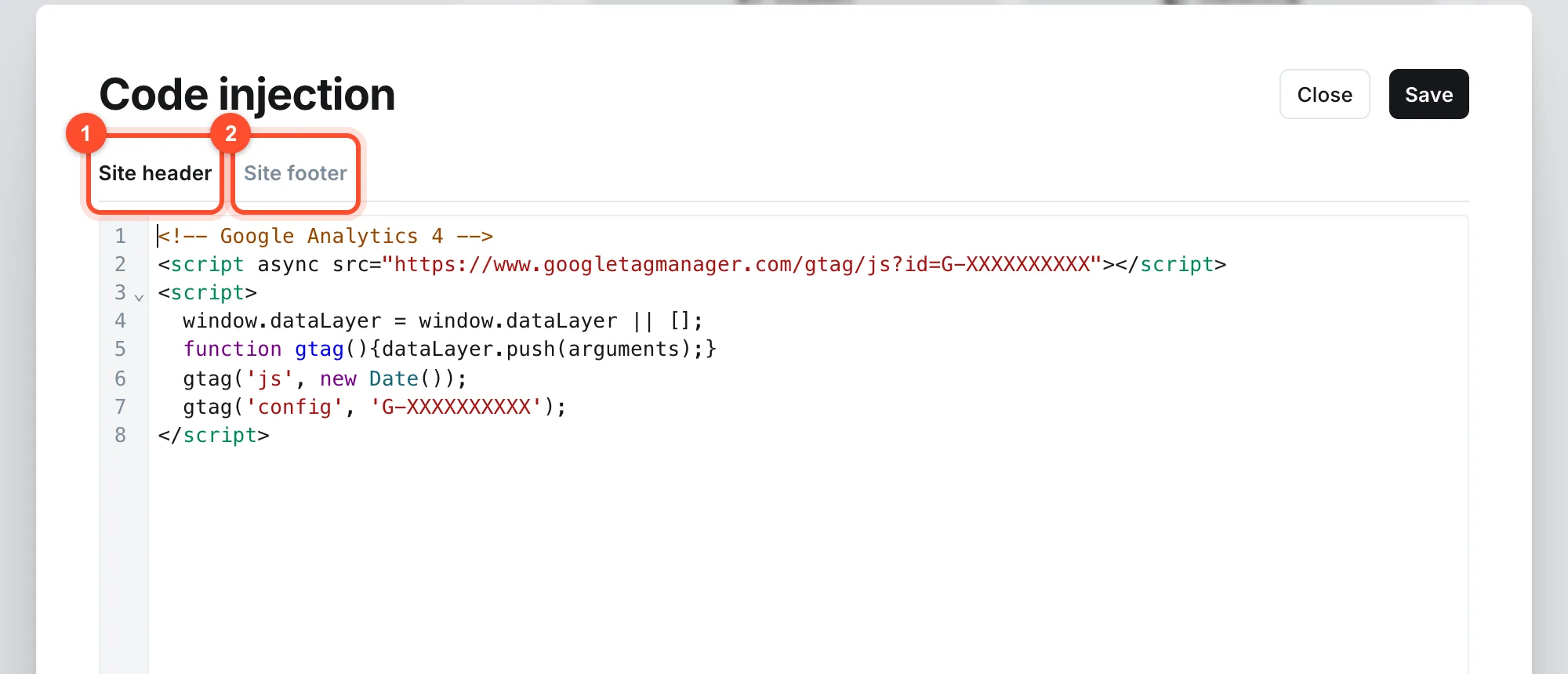
- Site header. Code placed in the head of every page, before the content loads. Use it for verification tags, styles and analytics that must load early.
- Site footer. Code placed at the end of every page. Use it for scripts that can wait until the page has rendered.
Paste your code, click Save, and it is live.
Step 2: Add Google Analytics 4
- In Google Analytics create a property for your site and a web data stream.
- Copy the measurement ID. It looks like
G-XXXXXXXXXX. - Copy the tracking snippet Google shows, which looks like this, with your own ID:
<script async src="https://www.googletagmanager.com/gtag/js?id=G-XXXXXXXXXX"></script>
<script>
  window.dataLayer = window.dataLayer || [];
  function gtag(){dataLayer.push(arguments);}
  gtag('js', new Date());
  gtag('config', 'G-XXXXXXXXXX');
</script>
- Paste it into the Site header tab and save.
- Visit your site in a private window, then check the Realtime report in Analytics. Your visit should show within a minute or two.
Replace G-XXXXXXXXXX with your real ID, and paste the snippet only once.
Step 3: Verify your site in Google Search Console
Search Console asks you to prove you own the site. Choose the HTML tag method, copy the meta tag and paste it into the Site header tab:
<meta name="google-site-verification" content="your-code-here">
Save, then click Verify in Search Console. Bing Webmaster Tools uses a similar tag. The full setup is in our Ghost SEO settings guide.
Step 4: Add custom CSS
To adjust styling without editing your theme, put CSS in a style tag in the header:
<style>
  .gh-head-btn { border-radius: 8px; }
</style>
Class names depend on your theme, so inspect the page with your browser's developer tools to find them. Small tweaks like this survive a theme update better than edits inside the theme files, but they may need adjusting if you change themes. See our theme and design guide.
Step 5: Add code to a single post
Open a post, click the icon at the right of the top bar to open Post settings, and find Code injection. It has its own header and footer boxes that apply only to that post. Use it for:
- A custom embed or widget for one article
- Styling specific to one long-form piece
- A tracking pixel for one campaign page
Tag pages have a Code injection section too.
Privacy-friendly alternatives to Google Analytics
Google Analytics is powerful but heavy, and in some regions it needs a consent banner. Lighter options that you add the same way, by pasting a script into the site header:
| Tool | Character |
|---|---|
| Plausible | Simple, cookie-free, paid or self-hosted |
| Fathom | Cookie-free, paid |
| Umami | Open source, self-hostable |
| Cloudflare Web Analytics | Free, works well if you already use Cloudflare |
Ghost 6 also has analytics features built into its admin, including an Analytics item in the sidebar. Whether web traffic statistics are available on your site depends on how your host has configured it.
Privacy and consent
If you have readers in the EU, UK or other regions with strict rules, tracking scripts that use cookies generally need consent before they run. A cookie-free analytics tool avoids most of that. Take proper advice for your situation, and describe your tracking in a privacy policy.
Keep injected code safe and fast
Code injection runs on every page, so mistakes are costly.
- Only paste code you trust. A malicious script here can steal your readers' data.
- Do not paste from unknown tutorials. Read what it does first.
- Keep it small. Each script slows your pages down, which hurts readers and rankings.
- Add one thing at a time and test in between.
- Remove old snippets you no longer use.
- Keep a copy of your injected code in a note, so you can restore it if something breaks.
Troubleshooting
| Symptom | Likely cause |
|---|---|
| Analytics shows no visits | Snippet pasted in the wrong place, wrong ID, or an ad blocker in your own browser |
| Site looks broken after saving | A stray or unclosed tag. Remove the last change |
| Verification fails | The tag is not in the header, or the page is cached. Wait a moment and retry |
| Double counting | The snippet is in both the header and the theme |
View the page source on your live site and search for your snippet. If it is not there, it is not being injected.
FAQ
Where do I put my Google Analytics code in Ghost?
In the Site header tab under Settings, Advanced, Code injection. Paste the full snippet with your own measurement ID and save.
Can I add JavaScript to just one Ghost post?
Yes. Every post and page has its own code injection area in its settings panel, which applies to that content only.
Does code injection slow down my site?
It can, if you add heavy scripts. A small analytics tag has minimal effect. Test your speed after adding anything large.
Do I need a cookie banner for Ghost?
Only if you use tracking that needs consent where your readers live. Ghost's own membership cookies are functional. Take advice for your region, and consider cookie-free analytics.
Can I use Google Tag Manager with Ghost?
Yes. Paste the Tag Manager container snippet into the Site header, and manage your other tags from inside Tag Manager.
A fast site makes every script you add cost less. See how our hosting works or start a Ghost blog.