Two things turn a blog from a hobby into a routine: publishing on a schedule, and letting other people contribute. Ghost does both well. This guide covers scheduling a post, getting the timezone right, and inviting writers with the correct permissions.
Part 1: Scheduling posts
Why schedule
Writing and publishing are separate jobs. Scheduling lets you write in a burst and release posts steadily, which keeps a blog looking active and gives you a regular rhythm to build an audience on.
Step 1: Check your timezone first
Scheduled times use your site's timezone, so set it before you schedule anything. Click Settings at the bottom of the left sidebar, and under General settings open Timezone. The Site timezone menu sets the zone used for all published posts. Choose the zone where your readers, or you, are based, and save.
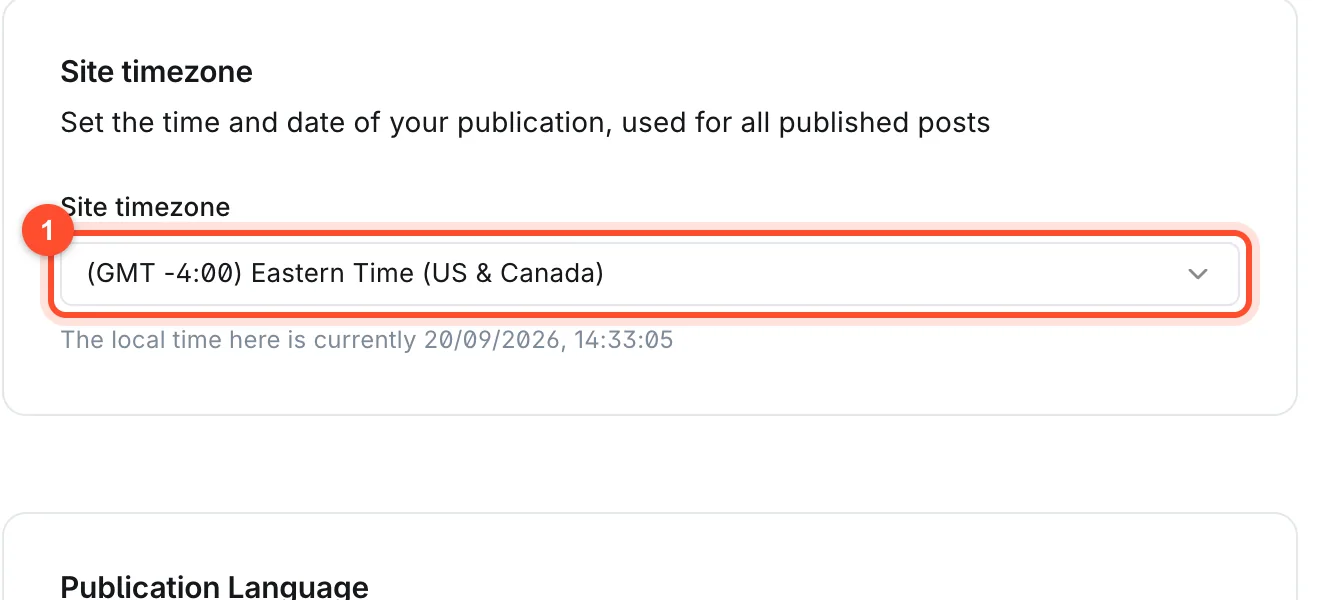
Getting this wrong is the classic scheduling mistake: a post set for 9am goes out at 2pm or 4am.
Step 2: Schedule a post
- Finish the post and open the preview to check it.
- Click Publish.
- Click the Right now row to open it, then choose Schedule for later.
- Pick the date and time in the two boxes that appear. The timezone is shown at the end of the time box.
- If you email posts to members, choose whether this one goes out by email too.
- Click Continue, final review and confirm.
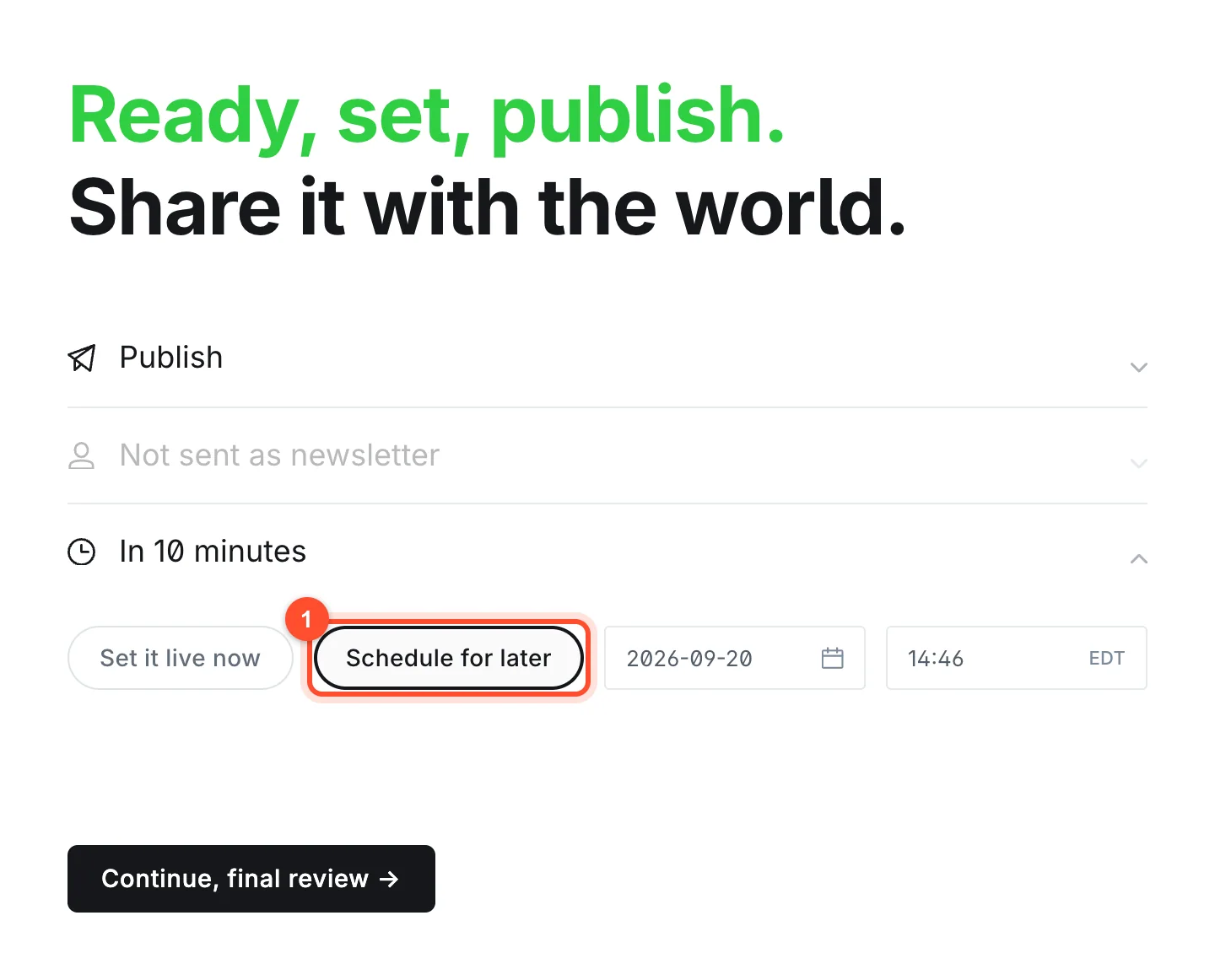
The post now appears in the Posts list with a green Scheduled label and goes live at the time you chose.
Step 3: Change or cancel a schedule
Open the scheduled post. The button that would normally read Unpublish reads Unschedule. Click it and the post goes back to being a draft. Edit it, then schedule it again for a new time.
When to publish
There is no universal best time. Some practical guidance:
- Publish when your readers are online. Look at your audience's location and habits.
- For email newsletters, mornings in the reader's timezone are a common choice.
- Consistency matters more than the exact hour. Weekly on the same day builds a habit.
- Search traffic does not depend on the hour you publish.
A simple content calendar
A spreadsheet is enough. One row per post, with the title, target search phrase, status, and publish date. Keep three posts drafted ahead, and you will never miss a week.
Part 2: Inviting writers
Step 1: Know the roles
Ghost has four roles you can invite people into, plus the Owner. Choose the lowest that lets the person do their job.
| Role | What they can do |
|---|---|
| Contributor | Create and edit their own posts, but cannot publish. An Editor needs to approve and publish them. |
| Author | Create, edit and publish their own posts, but cannot modify other people's. |
| Editor | Invite and manage Authors and Contributors, and edit and publish any post on the site. |
| Administrator | Manage all content and users, as well as site settings and options. |
| Owner | The account that owns the site. There is one, and it is set when the site is created. |
A safe default: guest writers as Contributors, regular writers as Authors, and one trusted person as Editor.
Step 2: Send the invitation
- Click Settings, and under General settings open Staff.
- Click Invite people.
- Enter the person's email and choose their role.
- Click Send invitation.
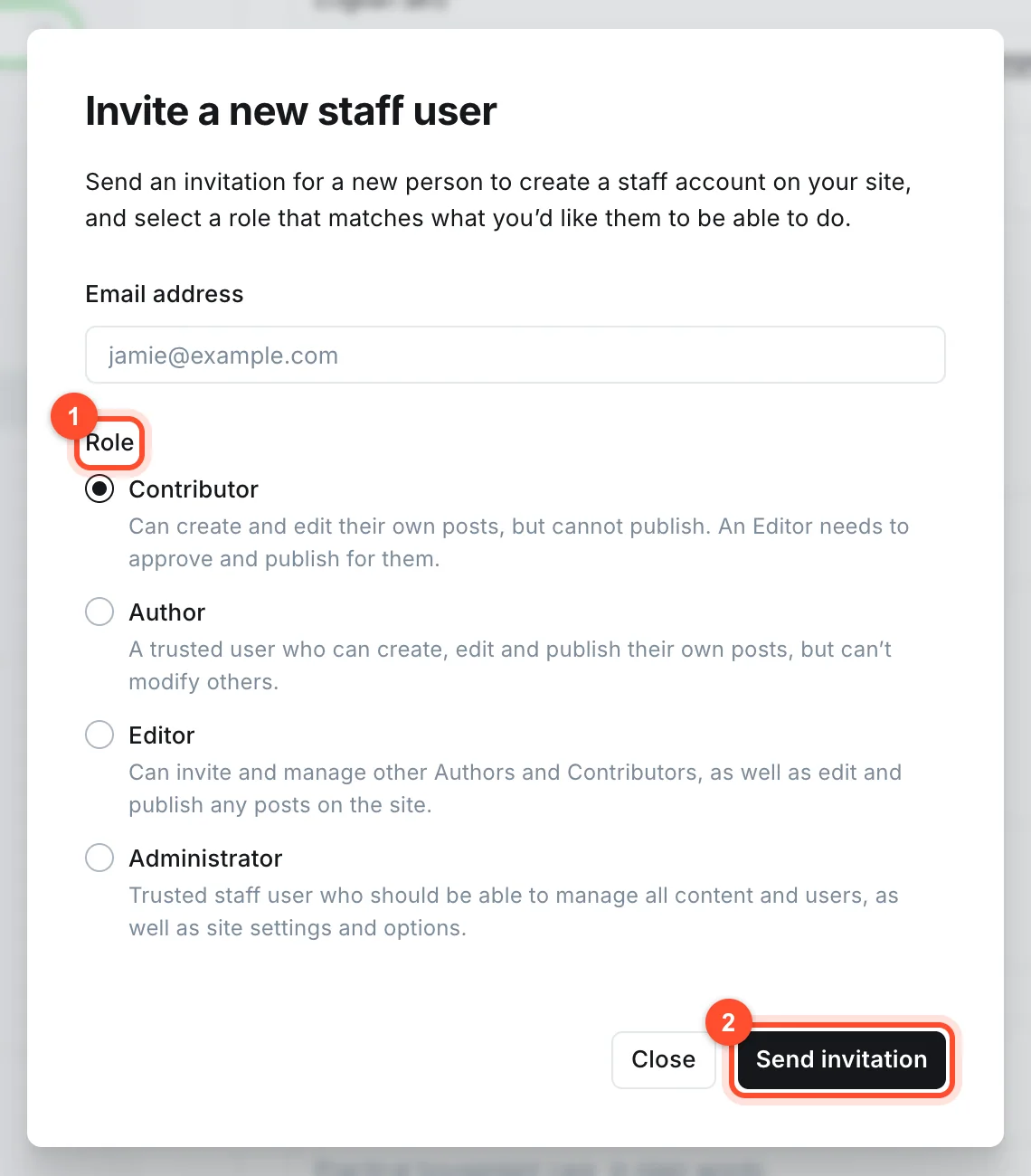
They receive an email with a link to set up their account. You can resend or cancel the invitation from the same screen while it is pending.
Make sure email is working first
Invitations, and the sign-in links for members, are sent by email. A new site has no mail sending until you set it up. On our platform you switch the shared mail relay on per site from the panel, and we recommend doing it before you invite anyone. If invitations never arrive, this is the first thing to check. There is more in our guide to memberships and newsletters.
Step 3: Set up author profiles
Each staff member has a profile with a name, photo and bio, shown on their posts and on their author page. Ask writers to complete it. A real person with a real bio builds trust, which matters for readers and for search engines judging expertise.
Step 4: Establish a simple workflow
For a small team:
- Contributors write drafts and tell an editor.
- The editor reviews, checks links, images and formatting, and fixes the tags and meta data.
- The editor schedules the post.
- After publishing, the author shares it.
Keep a short style guide covering headings, image sizes and tone, so posts look consistent.
Step 5: Remove access when people leave
When someone leaves the team, open their profile in Staff and delete or suspend their account straight away. Only give the Administrator role to people you would trust with the whole site.
Protect your account
Use a strong, unique password for every staff account, and give the fewest permissions needed. Review the staff list every few months and remove anyone who no longer needs access.
FAQ
Can I schedule a Ghost post in advance?
Yes. Click Publish, open the Right now row, choose Schedule for later, and select a date and time. The post publishes automatically at that moment.
Why did my scheduled post go live at the wrong time?
Almost always the site timezone. Check the Site timezone setting in the general settings and make sure it matches where you expect times to be interpreted.
How many staff users can I have?
Ghost itself does not limit them. Check your hosting plan for any restrictions.
What is the difference between an Author and a Contributor in Ghost?
An Author can publish their own posts. A Contributor can only write drafts, which an editor or administrator must publish.
Can I make someone an Administrator temporarily?
Yes. Change their role in Staff, then change it back afterwards. Only do this for people you trust.
Running a blog with a team? See our plans or create your blog.